IA que trabaja
n8n is a tool that lets you connect different apps and automate tasks without coding (or with very little code). You can draw workflows like this: when something happens here, do this there, and if a condition is met, do something else.
What makes n8n stand out from similar tools is that you can install it on your own computer or server for free with no execution limits, it has over a thousand integrations, and the AI features (agents, models, memory) are built in.
Let’s start with what matters: what you can automate. Then I’ll show you how to install it and build your first workflow.
20 things you can automate with n8n
Customer support
- Sort incoming emails with AI (question, order, complaint) and prepare the reply as a draft.
- Reply on WhatsApp with your own data: n8n has a node for the official WhatsApp Business API.
- Get notified on Telegram when a complaint or important client email comes in, with a summary of the message.
- Respond to Google reviews in your own tone, leaving the negative ones for you to handle.
Sales and clients
- Website form → CRM → notification: the contact is created automatically and you get a message with their request.
- Quote follow-up: if there’s no reply after three days, send a friendly reminder.
- Score new contacts with AI based on what they wrote, so you can prioritize likely buyers.
- Find opportunities on websites and social networks where your client asks for help, and send them to you each morning.
Admin and finance
- Read invoices that arrive by email with AI and log them in a spreadsheet.
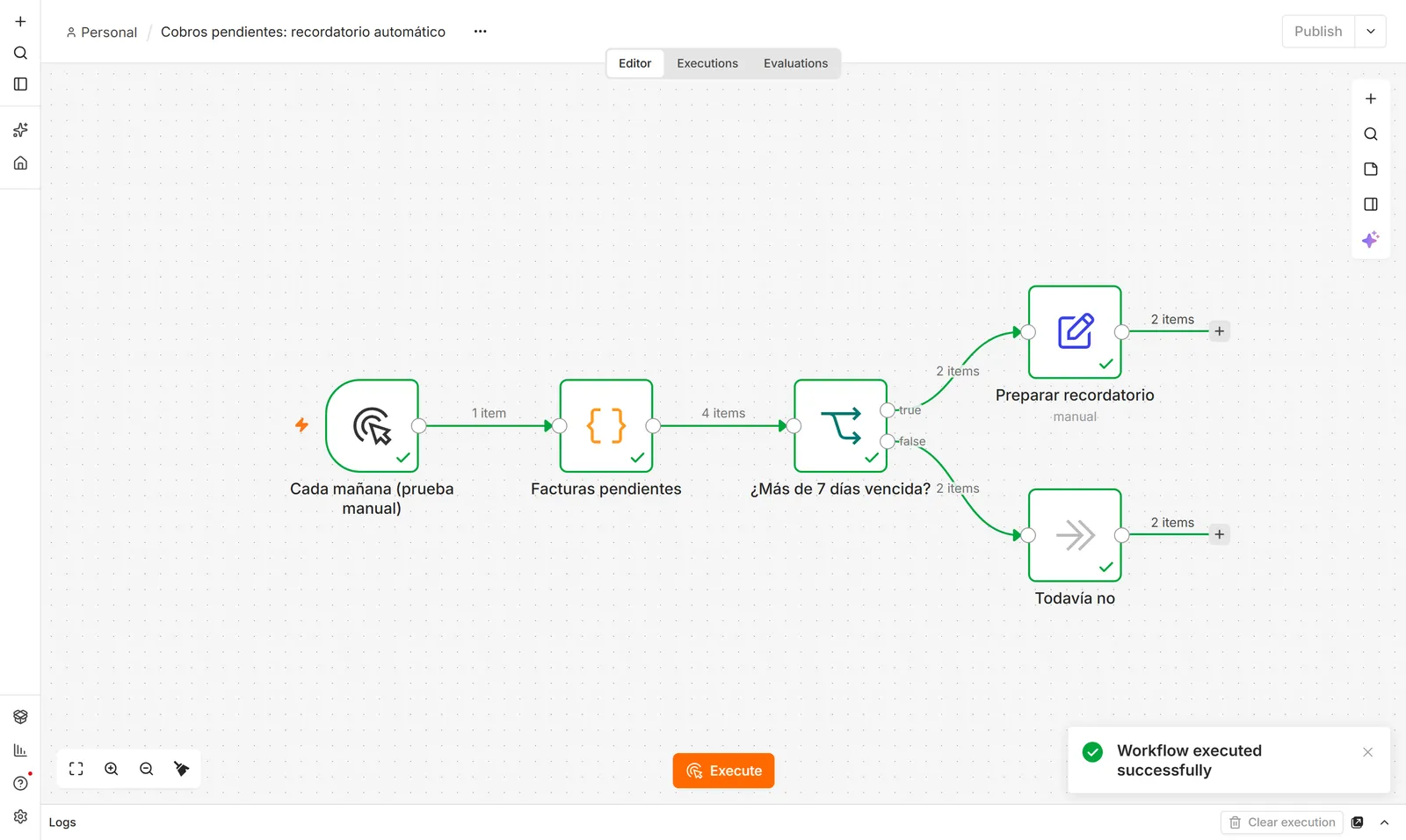
- Automatically chase overdue payments (this is the workflow I build below).
- Recurring invoices: generate and send the same invoices each month.
- Weekly summary of sales, expenses, and payments to your inbox every Monday.
Online store
- Order → invoice → shipping label without touching anything.
- Synced stock between your POS and your online store.
- Product descriptions written by AI from a photo and a few details.
- “Where’s my order?” alerts with the real status from the carrier.
Content and social
- Post to multiple networks at once from a spreadsheet calendar.
- Summarize news or videos from your sector and send them to you each morning.
- Transcribe audio or meetings to text and extract action items for each person.
Internal
- Backups that someone checks: export data from your tools every night and alert you if something fails.
If any of these sound useful, keep reading: you’ll build number 10 in a few minutes.
How to install n8n for free
You have three options:
| Option | Cost | For whom |
|---|---|---|
| n8n Cloud (their website) | Monthly fee based on executions | If you don’t want to install anything |
| On your computer | Free | For learning and testing |
| On your server | Free + server (about €5/month) | To have it running 24/7 |
The fastest way to learn is on your own computer. You just need Node.js installed (download it from nodejs.org, LTS version). Then open a terminal and type:
npx n8nThe first time takes a few minutes because it downloads everything (it’s a big package). When you see Editor is now accessible via: http://localhost:5678, open that address in your browser, create your user, and you’re set. That’s how I took the screenshots for this guide, using version 2.43 from October 2026.
Your first workflow: chasing overdue payments
Let’s build a workflow that checks your pending invoices and prepares a reminder for those overdue by more than 7 days. To test it without connecting anything, we’ll use sample invoices; in real use, they’d come from your invoicing software or a spreadsheet.
Step 1: the trigger
Every workflow starts with a trigger: what sets it in motion. It could be a time of day, an incoming email, a form, or a click. For testing, use the manual trigger: it runs when you press the button.
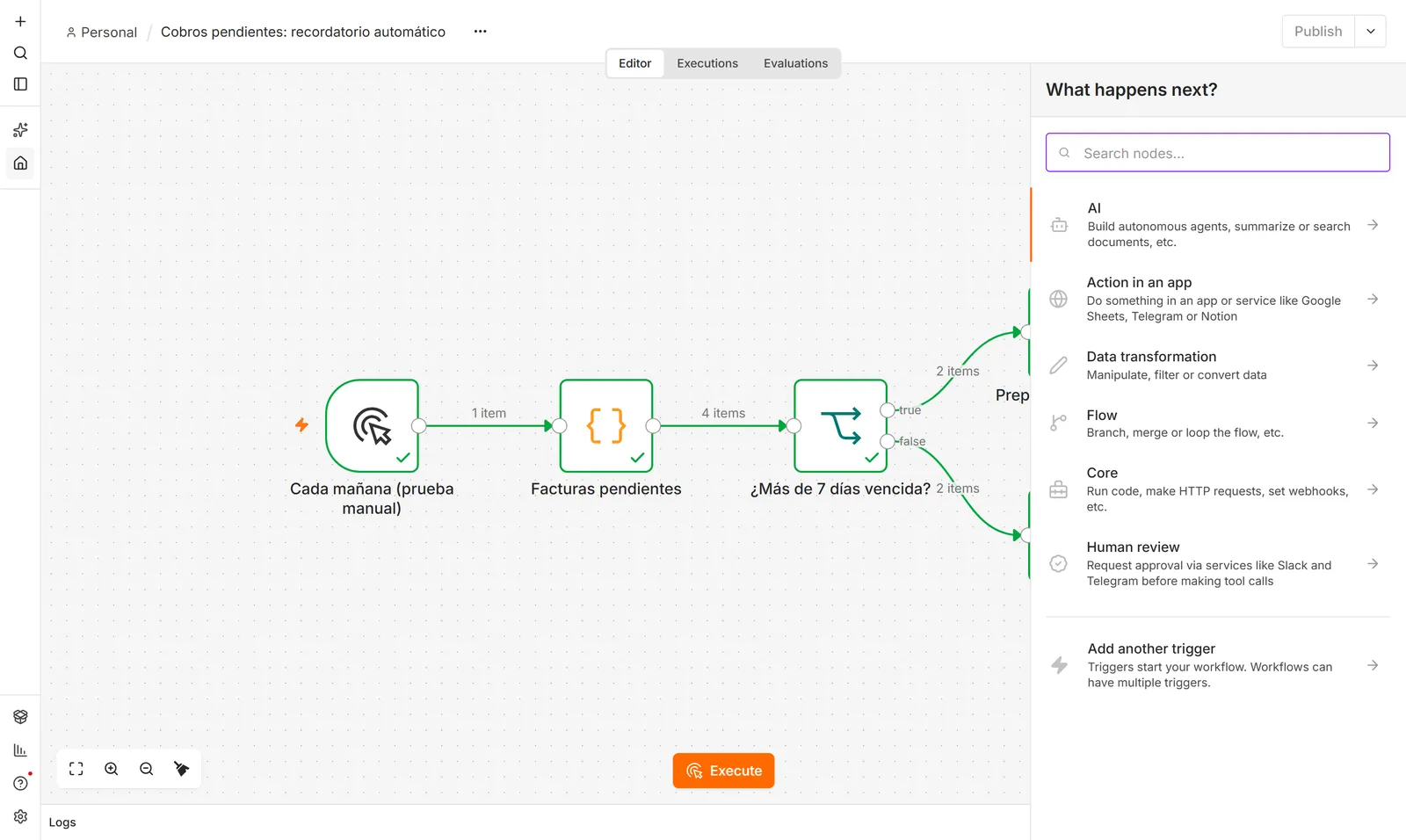
Press N (or the + at the top right) to open the node panel. You’ll see categories: AI, action in an app, data transformation, flow, core, and human review.
Step 2: the data
Add a Code node and paste in a list of invoices. Each invoice has its number, client, amount, due date, and email, and the node itself calculates how many days it’s overdue.
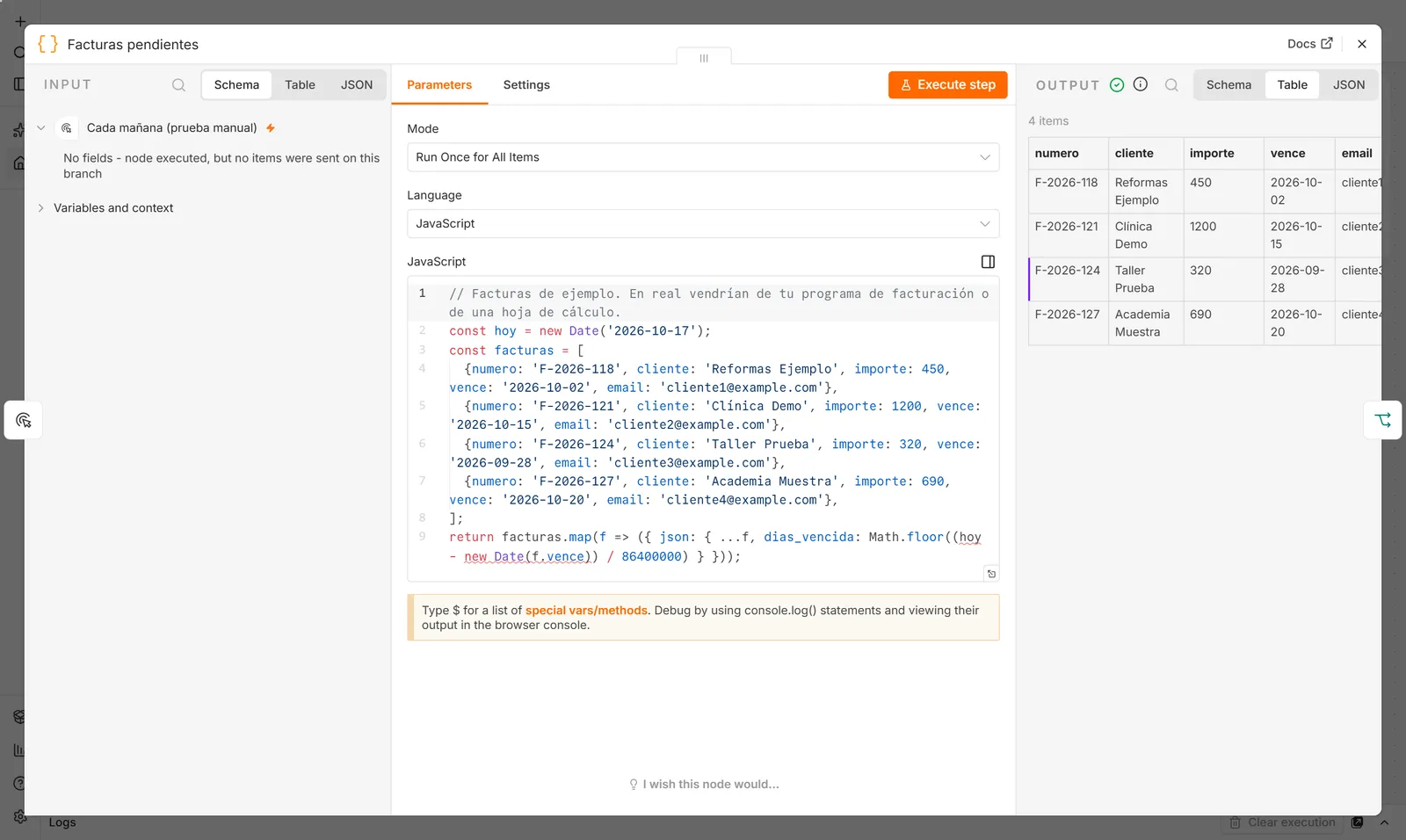
In a real case, instead of the Code node, you’d use the Google Sheets node (if your invoices are in a spreadsheet) or your invoicing software’s node.
Step 3: the condition
Add an If node and set the condition: dias_vencida is greater than or equal to 7. The node has two outputs: true (matches) and false (doesn’t match).
Step 4: the reminder
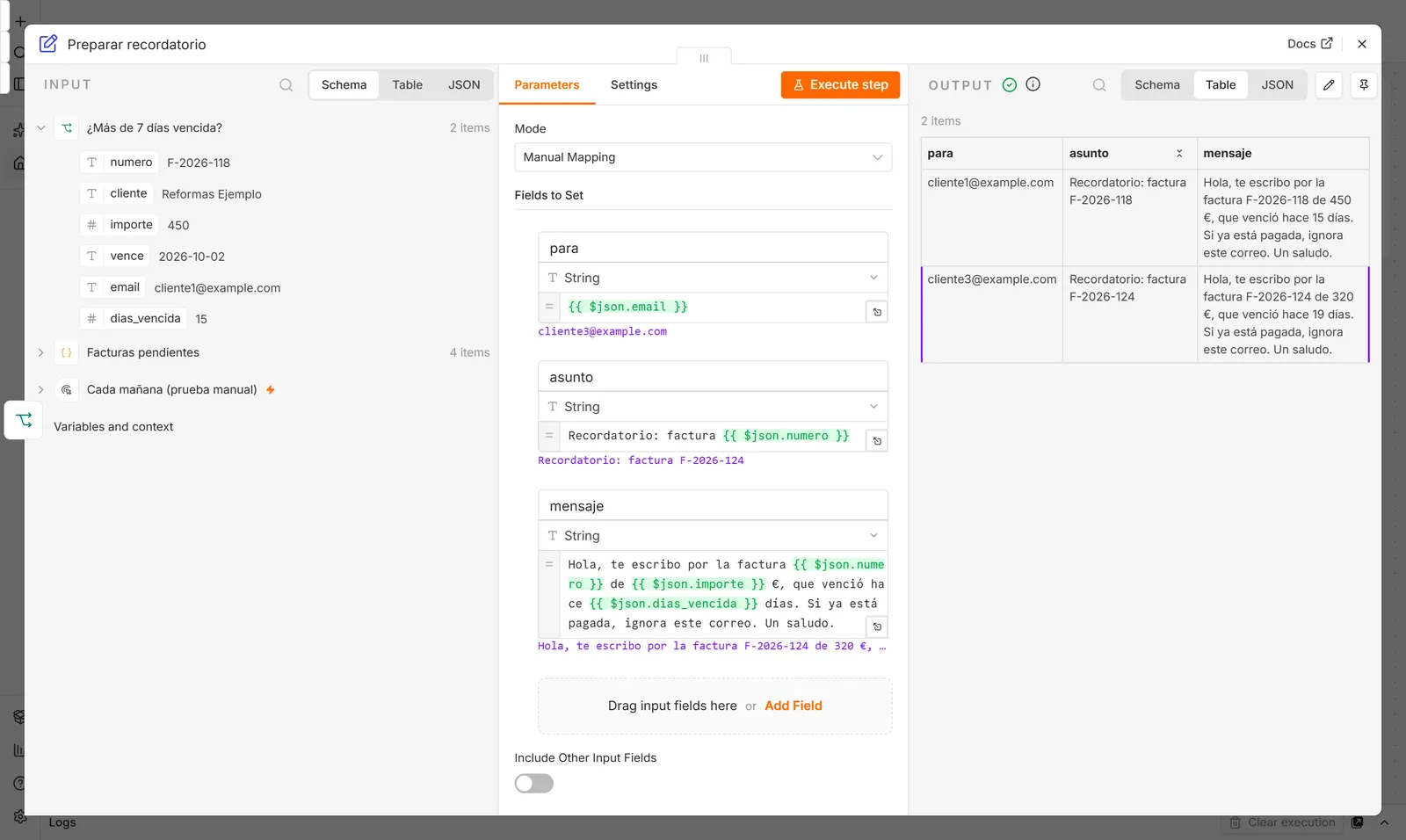
On the true output, add an Edit Fields (Set) node to prepare the email: recipient, subject, and message. Notice the expressions in curly braces: {{ $json.numero }} puts each invoice number into the text.
Step 5: run it
Click Execute workflow (or Ctrl + Enter). Each node turns green, and on the arrows you’ll see how many items go down each path: 4 invoices in, 2 go to the reminder, and 2 are left waiting.
To finish it for real, you’d need two more things:
- Replace the manual trigger with a Schedule Trigger to run it every morning.
- Add a Gmail or Outlook node (or WhatsApp) at the end to send the reminder, and click Publish to activate it.
A workflow with AI: classifying emails
n8n gets really powerful when you add AI in the middle. Here’s a typical customer support workflow:
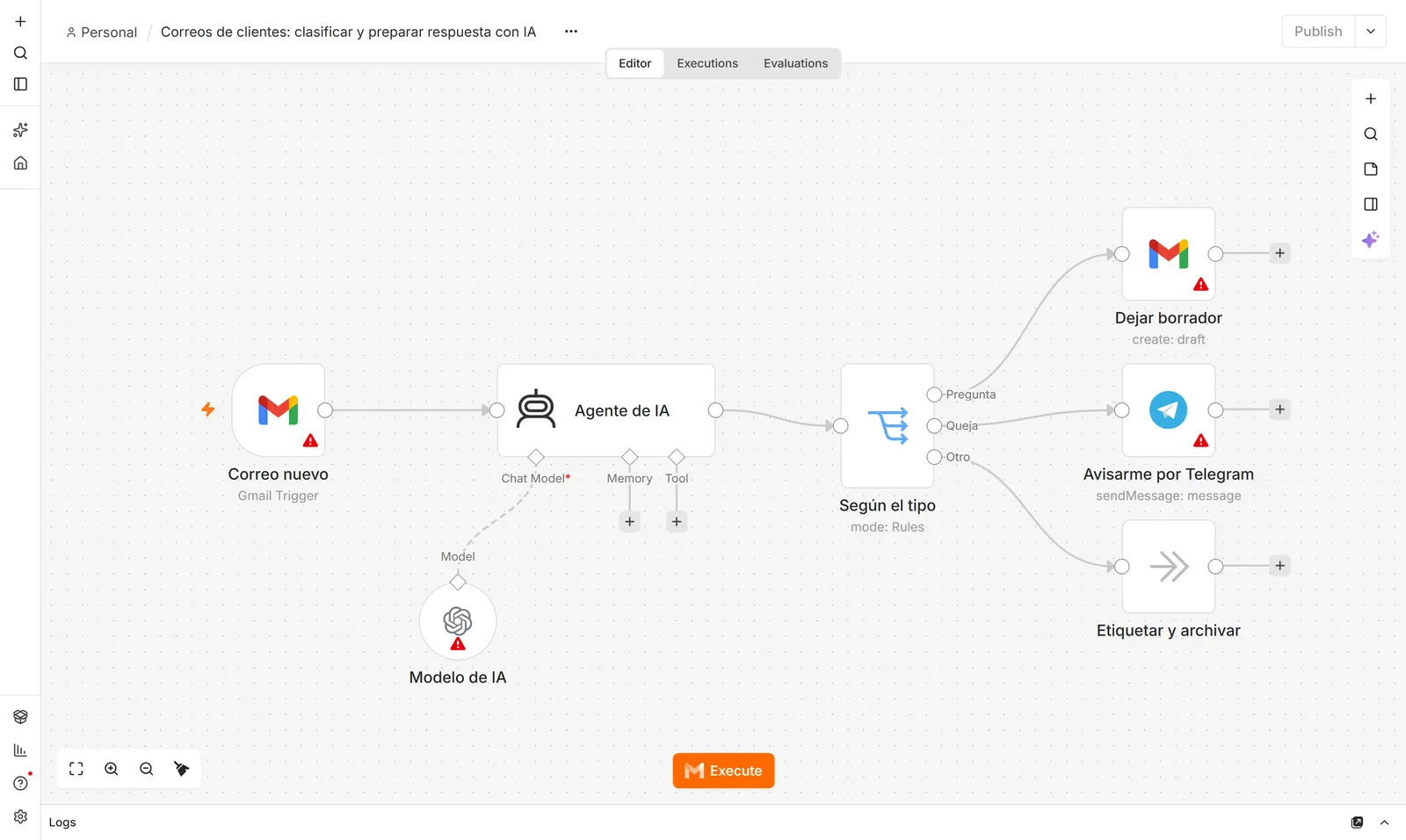
- New email (Gmail): triggers on every incoming email.
- AI Agent with a model (OpenAI, Claude, Gemini, or a local one): reads the email, classifies it, and if it’s a question, drafts a reply with your business info.
- Switch: routes based on type.
- Question → leaves the reply in drafts for you to review and send. Complaint → notifies you on Telegram. Other → labels and archives it.
To make it work, you just need to connect your Gmail, AI model, and Telegram credentials (the red triangles). n8n guides you through each one.
Integrations: find yours
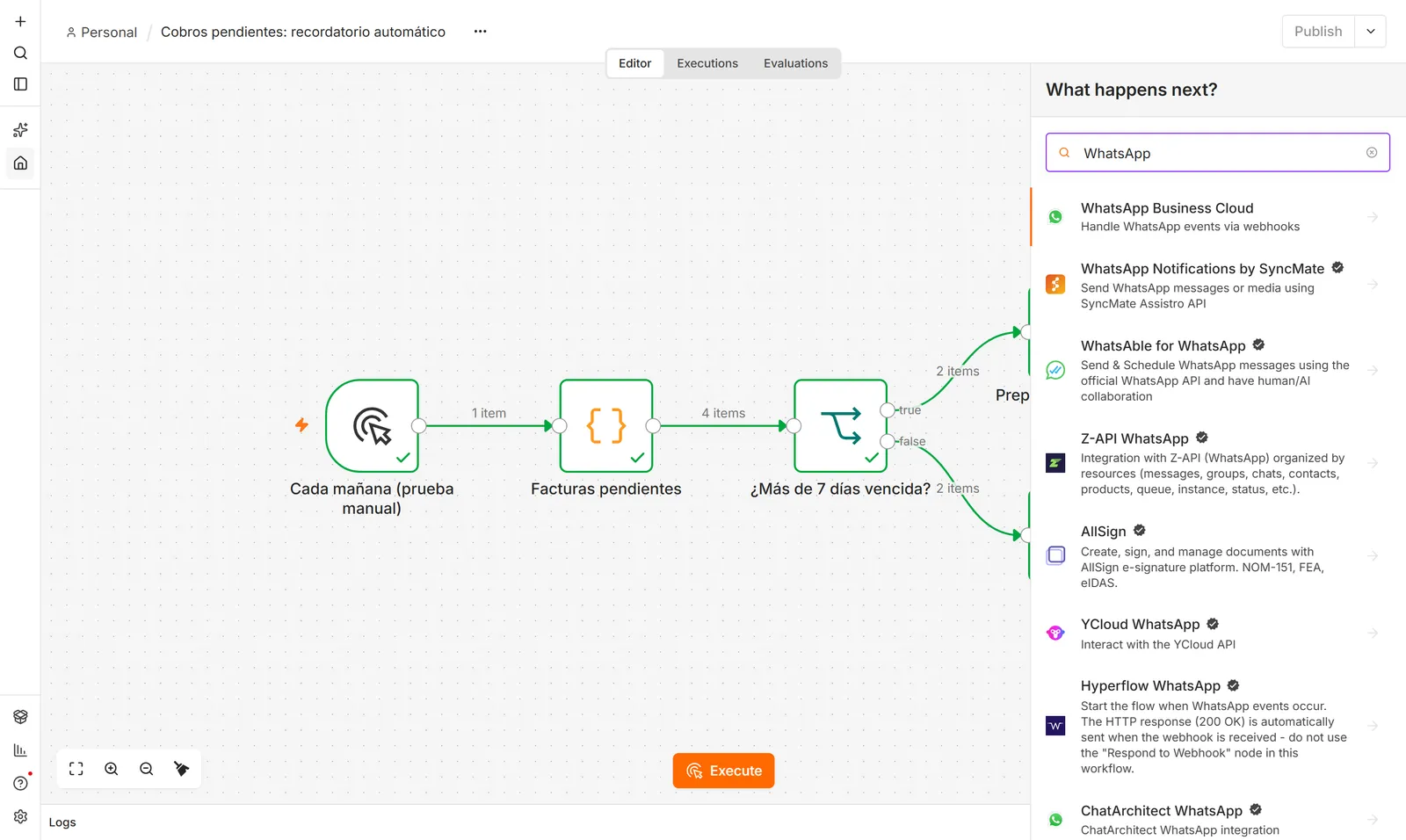
In the node panel you can search for any tool. For example, searching “WhatsApp” brings up the official WhatsApp Business Cloud node and several community ones:
If your tool isn’t listed, you can almost always connect it with the HTTP Request node, as long as it has an API.
n8n or Make: which to choose
| n8n | Make | |
|---|---|---|
| Price | Free on your computer or server; fee if you use their cloud | Monthly fee based on operations |
| Learning curve | Medium | Low |
| High volume | Very good (no limit if self-hosted) | Gets expensive |
| AI and agents | Very complete | Good |
| Maintenance | You (if self-hosted) | None |
My rule: if you want a few simple workflows and don’t want to deal with servers, use Make (see the Make guide). If you need lots of workflows, high volume, or AI in the middle, use n8n on your own server.
Common beginner mistakes
- Not testing with real data before activating. Run it step by step and check each node’s output.
- Not thinking about duplicates. If an event comes in twice, does it create the invoice twice? Add a check.
- Not noticing errors. Set up an error workflow (Error Trigger) to alert you if something fails.
- Giving credentials more permissions than needed. If it only needs to read a sheet, only allow read access.
If you want me to build the workflows for you, that’s one of my services. And if you want to keep learning, here’s how to automate processes with AI.
Frequently asked questions
What can you automate with n8n?
Almost any task that moves data from one app to another: forms to CRM, orders to invoicing, emails classified by AI, Telegram or WhatsApp alerts, payment reminders, weekly reports, social posts, and backups.
Is n8n free?
The version you install yourself (on your computer or server) is free and has no execution limits for personal use. n8n Cloud, the hosted version, has a monthly fee.
Do you need to know how to code to use n8n?
Not for most workflows: you build them by dragging nodes. Knowing a bit of JavaScript helps for the Code node and expressions, and AI can write those parts for you.
What’s the difference between n8n and Make?
They do the same thing. Make is easier and needs no maintenance, but you pay per operation. n8n can be self-hosted for free with no limits and is more powerful with AI, but you have to maintain the server.
Does n8n work with WhatsApp?
Yes, with the WhatsApp Business Cloud node, which uses Meta’s official API. You need a WhatsApp Business account set up in Meta.