IA que trabaja
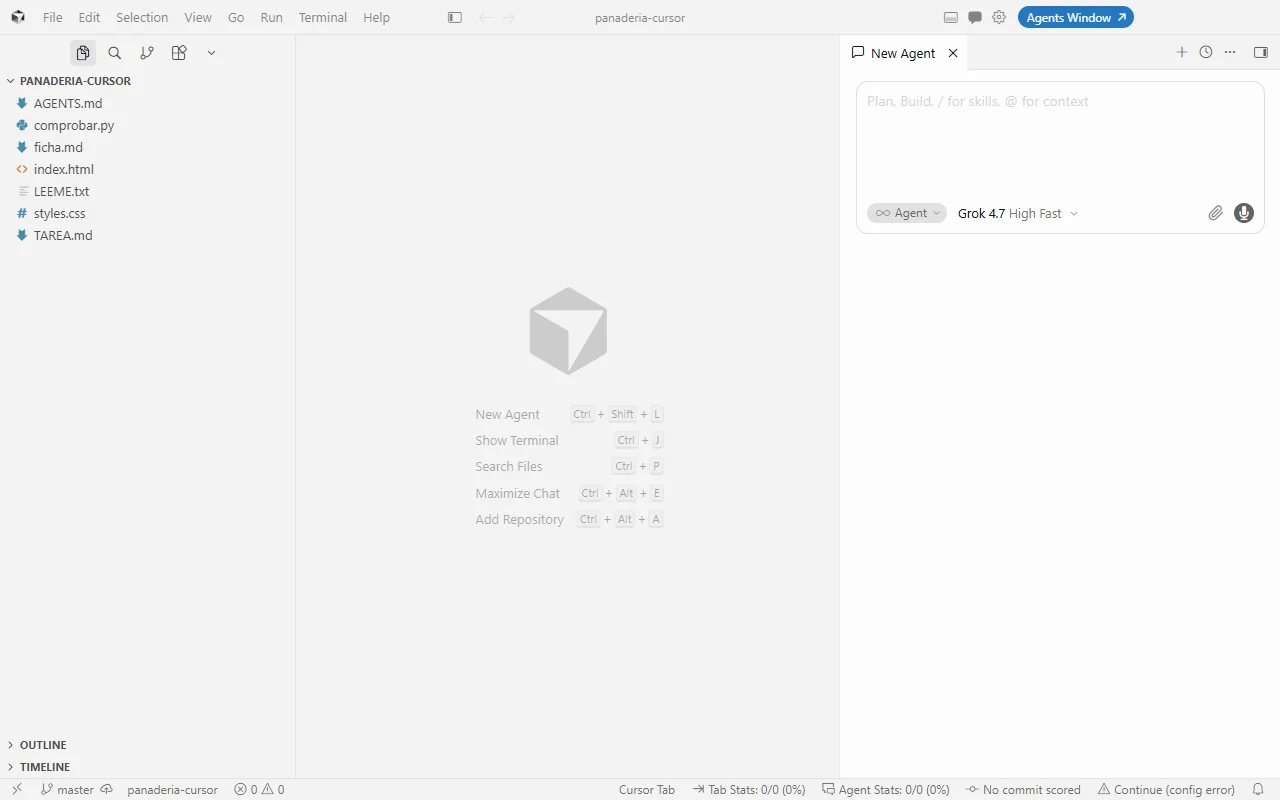
Cursor is a code editor (similar to VS Code, which it’s based on) with a built-in AI agent that reads your project, proposes a plan, changes files, and checks the results. If Claude Code lives in the terminal, Cursor lives in a window where you see the code as it works.
To keep this guide practical, I use a real task: a bakery website with three issues (a broken link, a table that overflows on mobile, and a phone number you can’t tap). A small script, comprobar.py, tells you how many are fixed: at the start, 0 out of 3.
What Cursor is and who it’s for
- Editor + agent. You open a folder, see the code, and talk to the agent in the right panel.
- See what it does. Every change is highlighted in red and green, file by file, and you choose what to keep.
- Built-in browser. The agent can open the website in a browser inside Cursor to check it.
- Multiple models. You can choose which model it uses; available models depend on your plan.
It’s for you if you like to see the code as the AI works, if you’re coming from VS Code, or if you’re learning and want to understand each change.
Pricing

As of October 2026, there’s a free plan with limited agent use, and paid plans at $8, $30, and $100 per month, mainly differing in how much you can use the AI. The free plan is enough to try it; for daily work, you’ll want a paid one.
Installing and opening your project
- Download Cursor from its official website and install it like any other program.
- Log in with your account.
- Open your project folder (File → Open Folder). Just like with Claude Code: one folder per project, never your whole drive.
- Open the Agent panel (on the right) and pick the model.
Working with the agent: plan, changes, and review
1. Ask for a plan first
Paste in the task with what needs fixing and ask it to first tell you what it’s going to do:
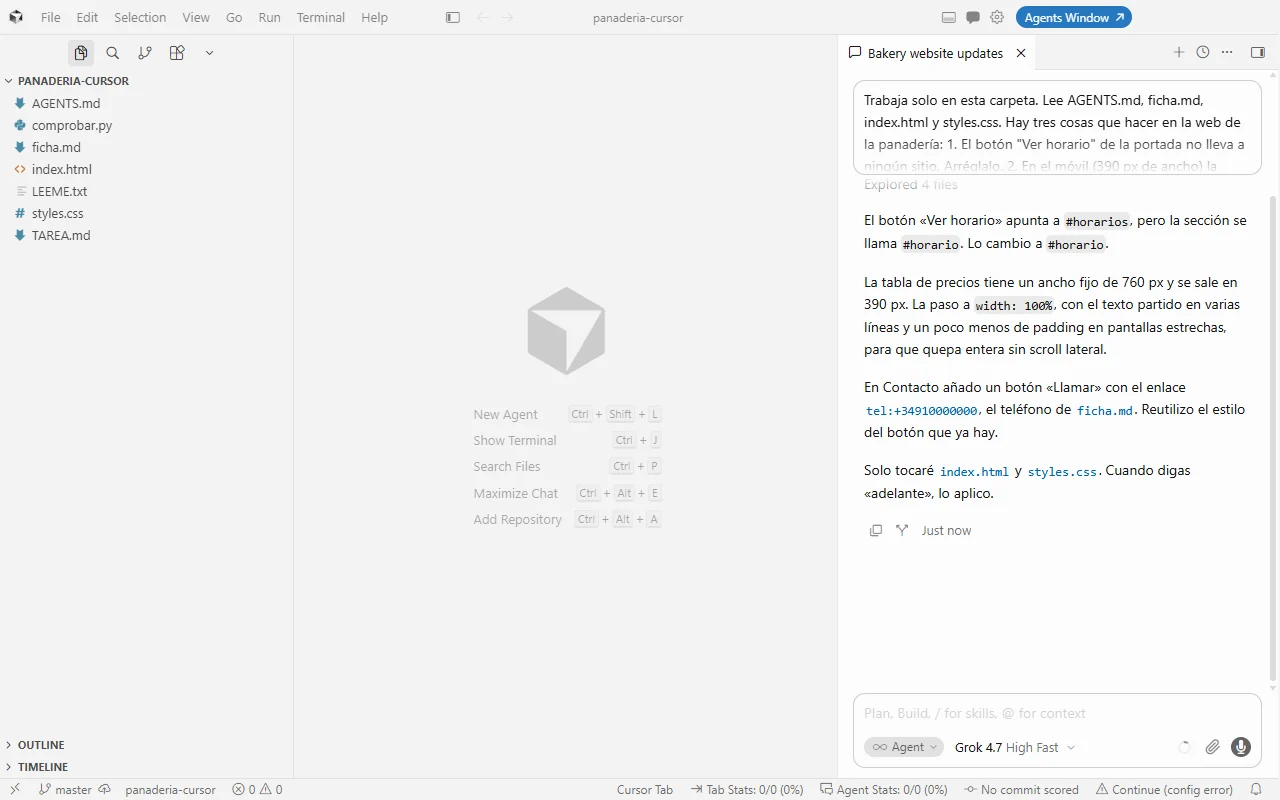
This saves you headaches: if you don’t like the plan, you can correct it before anything is changed.
2. Let it do the work and check it
When you give the go-ahead, it edits the files and, if you ask, opens the website in the built-in browser at 390 pixels wide (a mobile screen) to check that the table now fits.
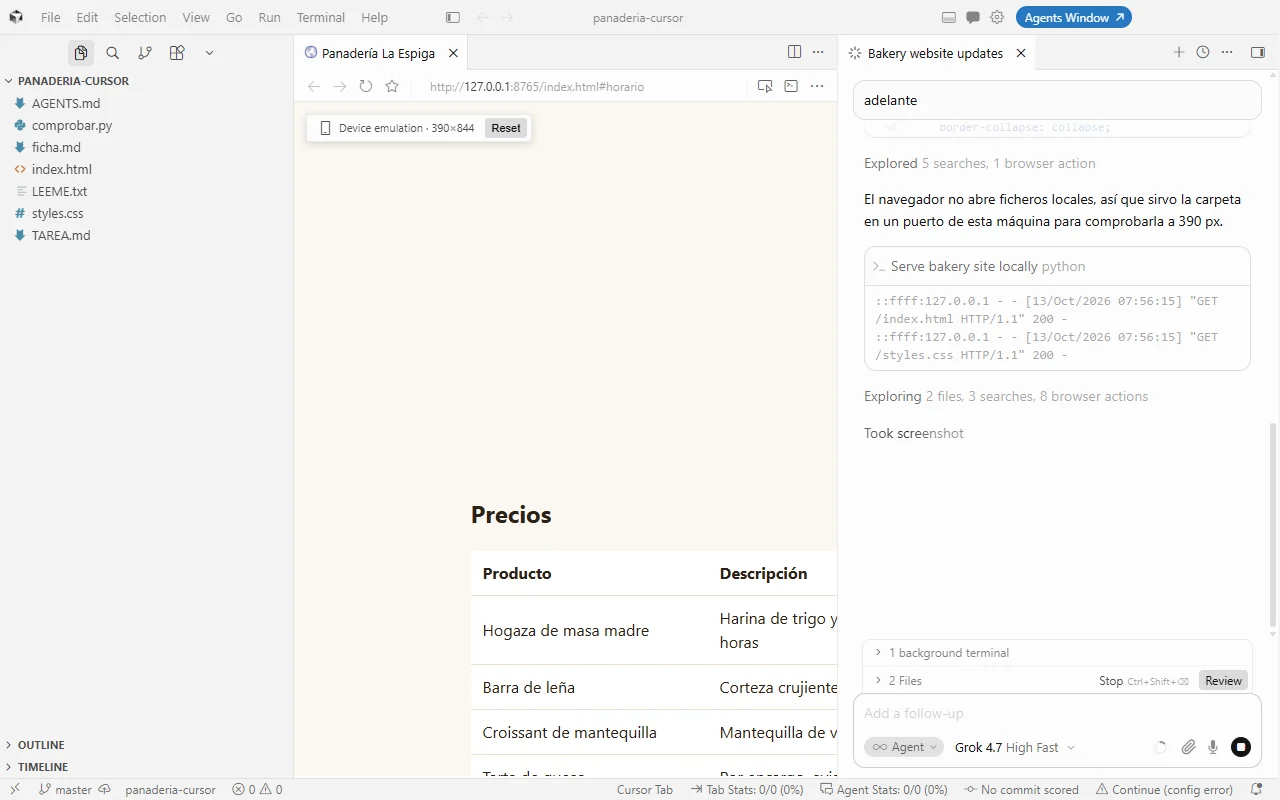
3. Review before accepting anything
When it’s done, the changed files appear at the bottom of the chat with three buttons: Undo All, Keep All, and Review. Always click Review first:
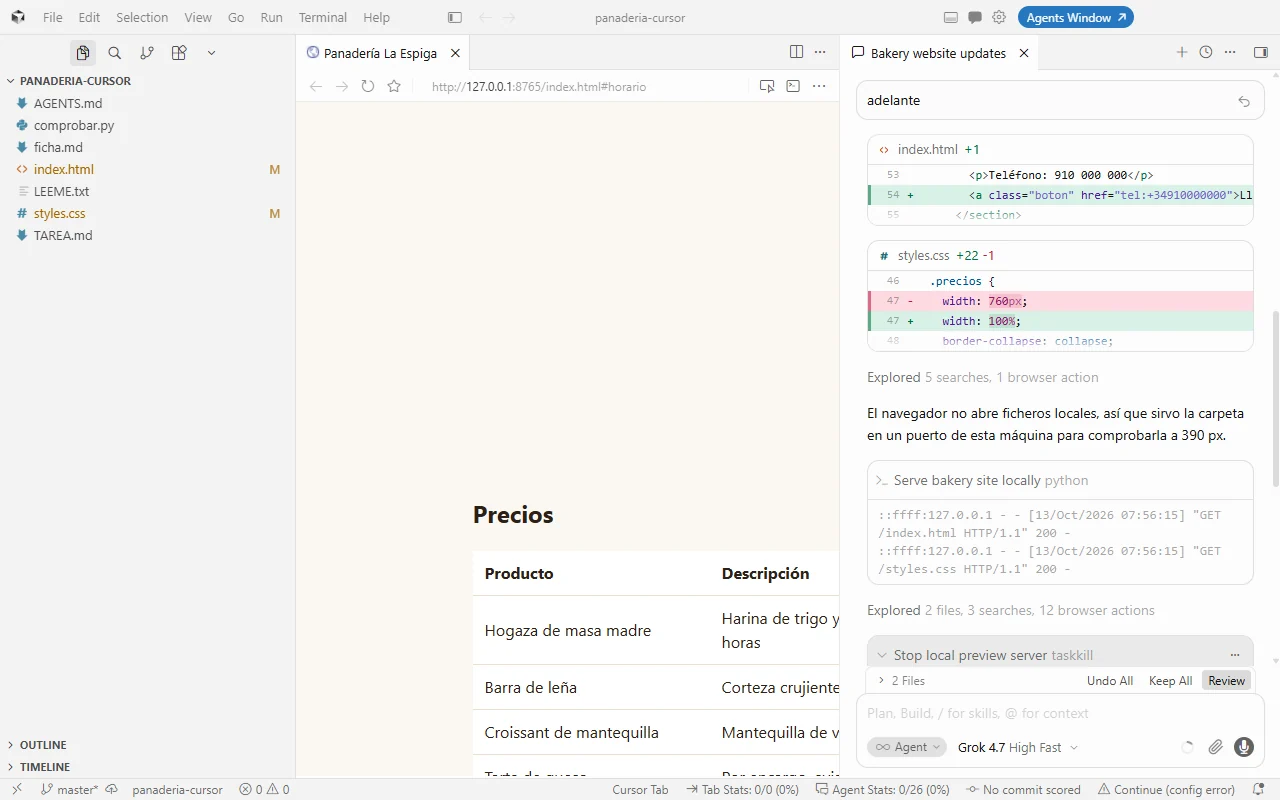
4. Check with something other than the AI’s word
The agent says everything’s fixed. Good. But check it yourself: in this case, with the script, which goes from 0 to 3 out of 3. In your project, it might mean opening the site, running tests, or checking it on your phone.

Project rules: make it follow your guidelines
Just as Claude Code uses its CLAUDE.md, Cursor has project rules. These are files in the .cursor/rules/ folder with the .mdc extension, where you write what it must always follow: tone of text, what not to touch, how to test.
Watch the extension: a .md in that folder is ignored; it has to be .mdc. It also reads an AGENTS.md file at the root of the project, a format several agents (Codex, Antigravity, etc.) understand—handy if you work with more than one.
Cursor also supports skills and MCP servers (in .cursor/mcp.json). I cover MCP in the MCP guide.
Cursor, Claude Code, Codex, or Antigravity
I did the same bakery task with all four agents. All of them solved it. What changes is how you work with each one:
| Cursor | Claude Code | Codex | Antigravity | |
|---|---|---|---|---|
| Where it runs | Visual editor | Terminal | Terminal (and app) | Google editor |
| Best for | Seeing code and reviewing changes comfortably | Long tasks, automating, and letting it run on its own | Fast and direct in the terminal | Projects with a guided plan and review |
| Project memory | .cursor/rules/*.mdc, AGENTS.md | CLAUDE.md | AGENTS.md | AGENTS.md and its config |
| Who it’s for | Those who want to see and understand each change | Those who want to delegate and automate | Terminal power users | People in the Google ecosystem |
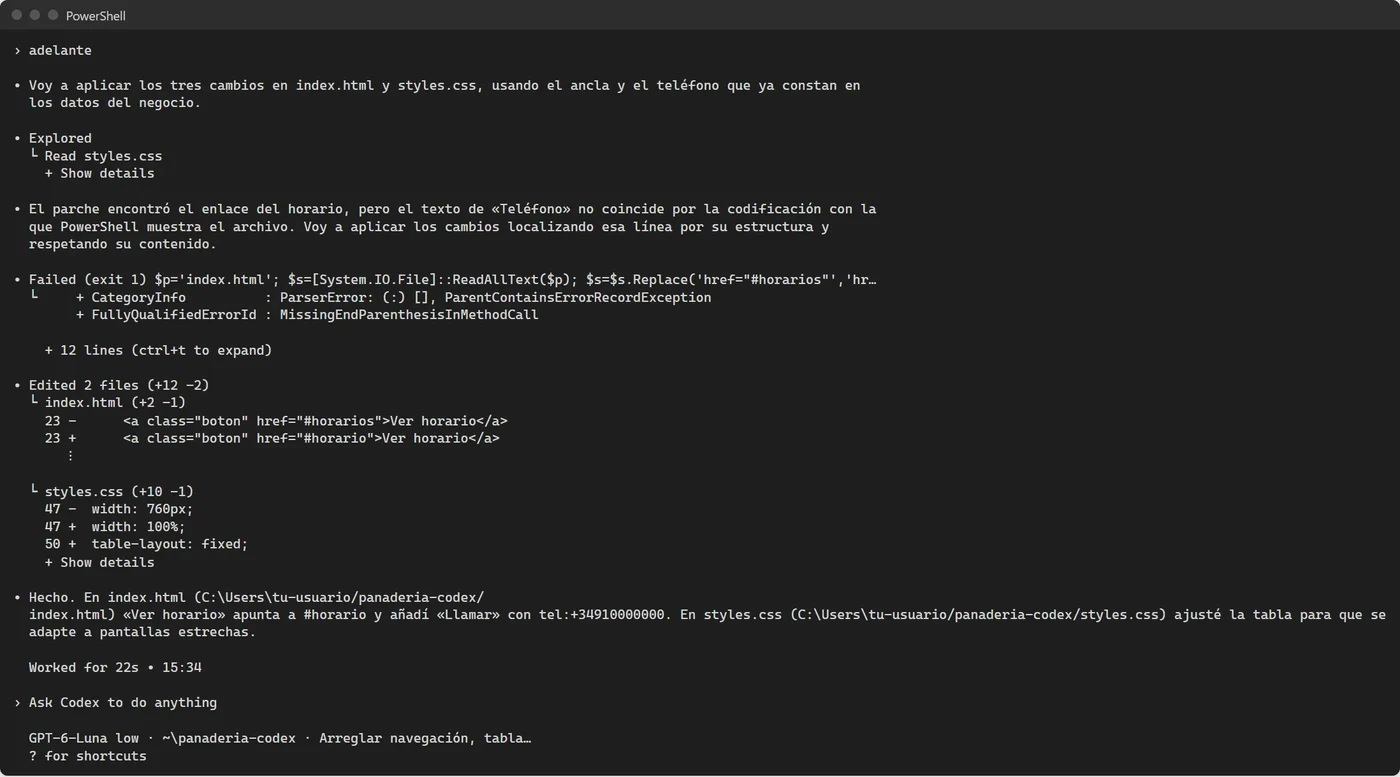
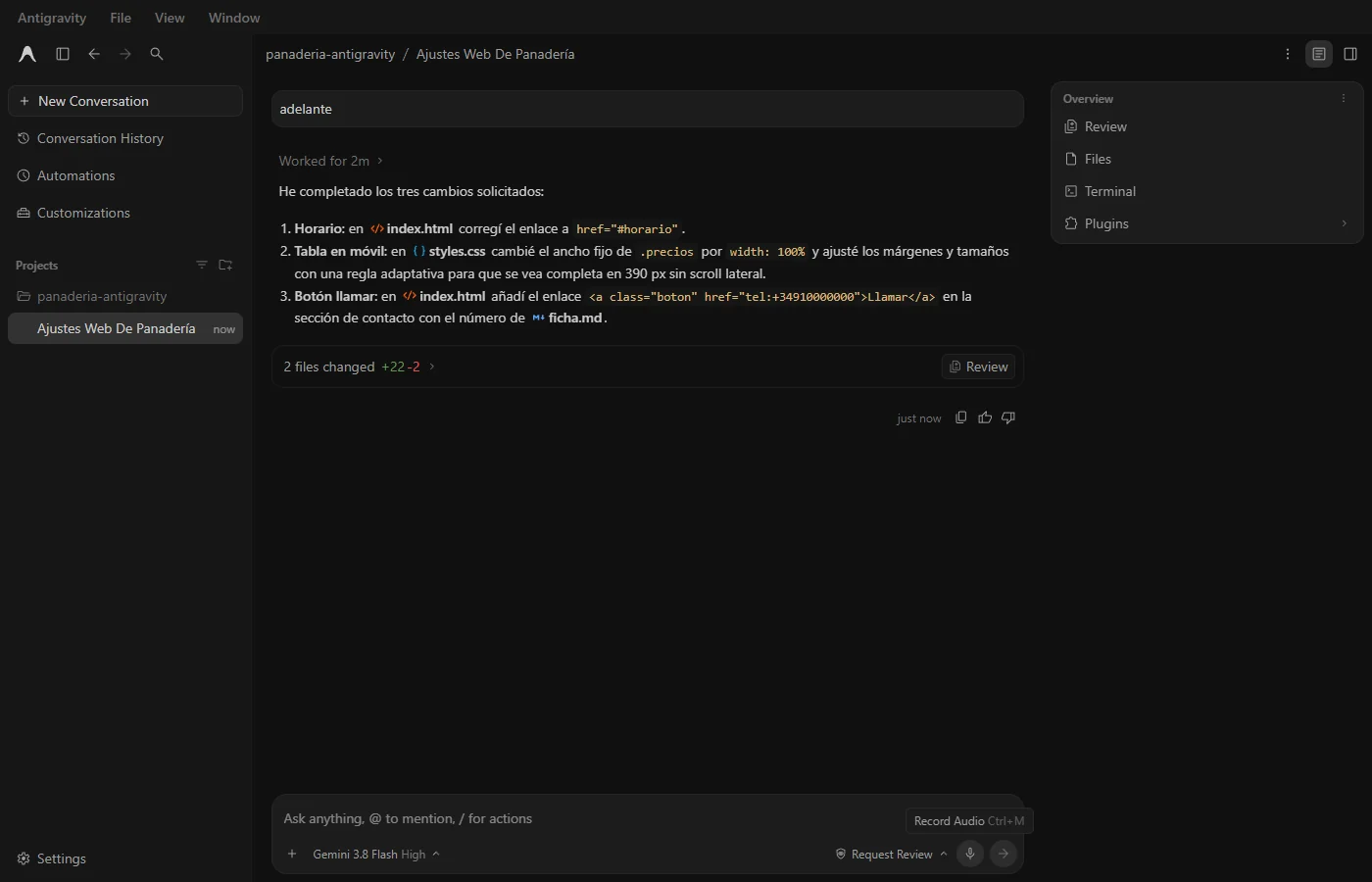
How I use them: Claude Code for almost everything (especially for automating or multi-step tasks), and Cursor when I want to see the code as it happens, or when I’m teaching someone who’s starting out.
Tips so Cursor doesn’t break anything
- Git before you start. Always.
- Plan before big changes. “Tell me what you’ll do and wait for my go-ahead.”
- Review before Keep All. Never accept blindly.
- Ask it to check: open the site, run the tests.
- One task per conversation. If you mix five things, it gets confused.
- Don’t paste passwords. Put them in a
.envfile that doesn’t get uploaded anywhere.
Frequently asked questions
What is Cursor AI?
Cursor is a code editor with a built-in AI agent. It reads your project, proposes a plan, edits files, and shows you the changes so you can choose what to keep.
Is Cursor free?
It has a free plan with limited agent use. Paid plans (as of October 2026, $8, $30, and $100 per month) give you more AI usage. Prices have changed several times, so check the official page.
Which is better, Cursor or Claude Code?
It depends on how you work. Cursor is more comfortable if you want to see the code and review every change in an editor. Claude Code is more powerful for long tasks, automations, and letting it run on its own from the terminal.
Where do you put project rules in Cursor?
In the .cursor/rules/ folder, in files with the .mdc extension. Cursor also reads an AGENTS.md file at the root of the project.
Do I need to know how to code to use Cursor?
Not to start, since you ask for things in plain language. But since Cursor shows you the code, you’ll get more out of it as you understand what’s changing. And it’s always smart to use Git so you can undo changes.