IA que trabaja
The problem: errors when saving AI-extracted amounts
Automating invoice reading with AI is now a standard tool for digitizing accounting and administrative processes. However, saving extracted amounts automatically, without any prior validation, can introduce errors into your accounts, create tax discrepancies, or even lead to penalties if the data is incorrect. The central challenge is how to check the reliability of the extraction before the amounts are permanently stored in your management or accounting system.
Errors can arise from many factors: a low-quality scan, an unusual invoice format, failures in optical character recognition (OCR), or the AI confusing similar fields (such as taxable base, VAT, total, withholdings, discounts, etc.). If these errors aren't caught before saving, fixing them later can be much more costly and complex, both in time and resources.
Why is prior validation essential?
Even though AI models have greatly improved at recognizing data in documents, there are still cases where automatic extraction can fail. For example:
- The invoice format is unusual or contains complex tables.
- There are several similar figures (base, VAT, total, withholdings), and the AI may confuse them.
- The scan is low quality, blurry, or has stains and strikethroughs.
- There are OCR errors, like mistaking a “1” for an “l” or a “0” for an “O”.
- The invoice includes multiple VAT rates or uncommon discounts.
Prior validation prevents extraction errors from spreading into your management system, where detection and correction are much more expensive. It also helps maintain data traceability and log possible failures for later analysis.
Requirements for effective validation
To implement a pre-check of amounts extracted by AI, you need:
- An automatic extraction system (for example, an AI agent or advanced OCR API).
- An automation workflow that can interrupt saving if there are doubts or errors.
- A validation method: this can be automatic (rules, double extraction, comparison with previous data) or manual (human review before saving).
- A log of validation results and detected errors.
These elements should be integrated into a single workflow, so extraction, validation, and final saving are coordinated and allow intervention when needed.
Limits and technical considerations
- AI accuracy: No system guarantees 100% accuracy. Validation reduces risk but doesn't eliminate it. There's always a chance an error will go unnoticed if not caught during validation.
- Automation vs. human intervention: More manual review means a slower process; less review increases error risk. The balance depends on your invoice volume and your business's risk tolerance.
- Cost: Validation may require extra resources (review time, AI credits, temporary storage). It's important to weigh the cost of errors against the cost of review.
- Integration: You need to connect extraction, validation, and saving in a single workflow, ideally using automation tools like n8n, which help manage steps and log results centrally.
Example: validation workflow with n8n and Google Sheets
Suppose you want to extract amounts from invoices received by email and save them to a spreadsheet, but only if the extraction is reliable. The workflow would be:
- Receipt and extraction: An n8n workflow detects a new invoice (for example, attached to an email). It sends the file to an AI agent or OCR API to extract key amounts (taxable base, VAT, total).
- Automatic validation: The workflow compares the extracted amounts. For example, it checks that base + VAT = total (within a reasonable margin of error). If the sum doesn't match, it marks the invoice as "pending review".
- Temporary logging: The extracted data and validation result are saved to a Google Sheet using the relevant node (see documentation). Only if validation passes is it marked as "ready to save".
- Manual review (if needed): If automatic validation fails, the workflow can send an alert (email, Slack, etc.) so someone can review the invoice and correct the amounts before saving.
- Final saving: Only validated records (either automatically or manually) are transferred to the accounting system or final database.
- Error handling: If the workflow fails at any step, an error flow is triggered (see how it works), which can log the failure and notify someone.
Detailed walkthrough of the proposed example
Below is a detailed simulation of the example above, including inputs, states, results, errors, and a sample check table. This is a hypothetical simulation based on the described workflow, not a real execution.
System inputs
- Received invoice: PDF attached to an email, with the following visible data:
- Taxable base: €100.00
- VAT (21%): €21.00
- Total: €121.00
- Alternative invoice: PDF with low-quality scan, where OCR may confuse some digits.
- Invoice with unusual format: Document including discounts, multiple VAT rates, or extra fields.
Possible workflow states
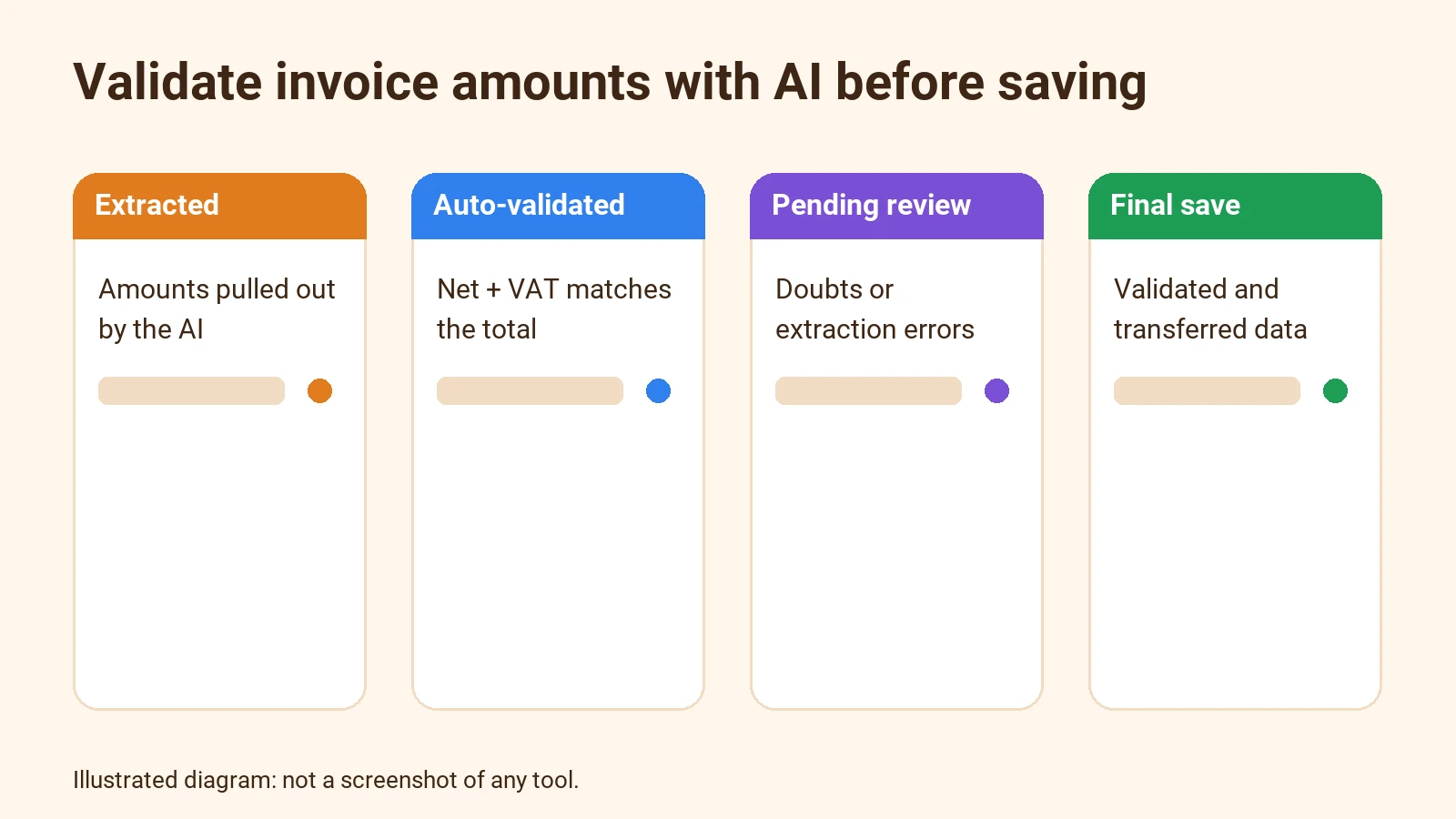
- Extracted: The AI has processed the invoice and returned the amounts.
- Automatically validated: The sum base + VAT matches the total (within a €0.01 margin).
- Pending review: The sum doesn't match or there are doubts about the extraction.
- Manually reviewed: Someone has checked and corrected the amounts.
- Final saving: The validated data has been transferred to the final system.
- Extraction error: The AI couldn't extract the data or returned inconsistent values.
- Workflow error: The workflow failed at some step (for example, couldn't save to Google Sheets).
Expected results
- Case 1: Standard invoice, correct extraction
- AI extracts: Base €100.00, VAT €21.00, Total €121.00.
- Automatic validation: 100.00 + 21.00 = 121.00. State: Automatically validated.
- Google Sheets log: Status "ready to save".
- Final saving: Yes.
- Case 2: Standard invoice, minor extraction error
- AI extracts: Base €100.00, VAT €21.00, Total €120.50.
- Automatic validation: 100.00 + 21.00 = 121.00 ≠ 120.50. Difference: €0.50.
- State: Pending review.
- Notification: Alert sent for manual review.
- After review: Total corrected to €121.00. State: Manually reviewed.
- Final saving: Yes, after correction.
- Case 3: Poor scan
- AI extracts: Base 10O.00 € (the “O” is a “0”), VAT 2l.00 € (the “l” is a “1”), Total €121.00.
- Automatic validation: 10O.00 + 2l.00 is not numeric. State: Extraction error.
- Google Sheets log: Status "extraction error".
- Notification: Alert sent for manual review.
- After review: Values corrected to Base €100.00, VAT €21.00. State: Manually reviewed.
- Final saving: Yes, after correction.
- Case 4: Unusual format (multiple VAT rates)
- AI extracts: Base €100.00, VAT 10%: €10.00, VAT 21%: €21.00, Total €131.00.
- Automatic validation: 100.00 + 10.00 + 21.00 = 131.00. State: Automatically validated.
- Google Sheets log: Status "ready to save".
- Final saving: Yes.
- Case 5: Invoice with discount
- AI extracts: Base €100.00, Discount: €10.00, VAT 21%: €18.90, Total €108.90.
- Automatic validation: (100.00 - 10.00) + 18.90 = 108.90. State: Automatically validated (if the rule accounts for discounts).
- Google Sheets log: Status "ready to save".
- Final saving: Yes.
- Case 6: Workflow error (e.g., failure to save to Google Sheets)
- AI extracts data correctly.
- When trying to save to Google Sheets, the node returns an error (e.g., connection failure).
- State: Workflow error.
- Error flow triggered: Failure logged and notified.
- Final saving: No, until the error is resolved.
Sample check table (hypothetical)
| Invoice No. | Base (€) | VAT (€) | Total (€) | Discount (€) | Extraction status | Validation status | Final action |
|---|---|---|---|---|---|---|---|
| 001 | 100.00 | 21.00 | 121.00 | 0.00 | OK | Auto-validated | Final saving |
| 002 | 100.00 | 21.00 | 120.50 | 0.00 | OK | Pending review | Reviewed and saved |
| 003 | 10O.00 | 2l.00 | 121.00 | 0.00 | OCR error | Extraction error | Reviewed and saved |
| 004 | 100.00 | 10.00 | 131.00 | 0.00 | OK | Auto-validated | Final saving |
| 005 | 100.00 | 18.90 | 108.90 | 10.00 | OK | Auto-validated | Final saving |
| 006 | 100.00 | 21.00 | 121.00 | 0.00 | OK | Workflow error | Pending resolution |
This table clearly summarizes the different states and actions depending on extraction and validation results. In a real case, the Google Sheet would have extra columns for date, supplier, notes, and review traceability.
Detectable errors and management
- OCR errors: Misrecognized characters, like “O” instead of “0” or “l” instead of “1”.
- Sum errors: The sum of base and VAT doesn't match the total.
- Empty fields: A key field wasn't extracted.
- Format errors: Amounts with wrong symbols, misplaced decimals, etc.
- Workflow errors: Integration failures, such as inability to save to Google Sheets or send notifications.
The workflow should log these errors and allow for review, either manually or via additional rules (for example, checking that amounts aren't negative or that VAT matches the expected rate).
Validation states and actions
- Automatically validated: The workflow marks the record as "ready to save".
- Pending review: A user is notified to review and correct the invoice data.
- Extraction error: The failure is logged and manual review is requested.
- Workflow error: The error flow is triggered and technical intervention is notified.
Example of error handling in n8n
n8n lets you set up custom error flows. If the workflow fails (for example, saving to Google Sheets or sending a notification), you can trigger an error flow that logs the failure and notifies those responsible. This prevents unnoticed errors and allows quick resolution (see documentation).
Verifiable steps to implement validation
- Set up automatic invoice extraction with AI: You can use services like Automatic invoice reading with AI to obtain key amounts from each received invoice.
- Design the workflow in n8n: The workflow should receive the document, extract the data, and perform automatic validation according to defined rules (for example, checking that base plus VAT matches the total).
- Add Google Sheets nodes: Use n8n nodes to create, update, and read rows in Google Sheets, saving temporary results and the validation state for each invoice (see documentation).
- Implement notifications for manual review: If automatic validation fails, the workflow should send an alert (by email, Slack, etc.) to the responsible person so they can review and correct the data before final saving.
- Set up an error flow: If the workflow fails at any step (for example, due to a connection problem or API error), trigger an error flow that logs the failure and notifies for resolution (see how it works).
Costs: estimate and sources
- n8n Cloud: From €20/month (Starter) with 2,500 executions per month (source). The actual cost depends on invoice volume and whether you use the cloud or self-hosted version.
- Google Sheets: Free with a Google account, except for very high volumes.
- AI/OCR: If you use an external API for extraction, the cost depends on the provider and number of pages processed (not included here as it depends on the specific service).
- Manual review time: Varies depending on how many invoices need intervention. If automatic validation is effective, human intervention can be minimized.
Limits and risks
- If validation relies only on simple rules, it may not catch subtle errors (for example, if AI extracts a line item instead of the total).
- The process can slow down if many invoices need manual review.
- Integrating AI, automation, and accounting systems requires testing and adjustment for each business.
- Temporary storage in Google Sheets is useful for small businesses but may not scale for large volumes.
- Extraction quality depends on the original document and the AI/OCR's capabilities.
Frequently asked questions
Can I automate validation without human intervention?
Yes, but only for cases where the checking rules are sufficient to catch errors. For complex invoices or non-standard formats, manual review is still recommended. The balance between automation and review depends on your risk tolerance and the volume of documents to process.
What if the AI extracts the wrong amount?
The workflow should identify inconsistencies (for example, sums that don't add up) and flag the invoice for review before saving the final data. If automatic validation doesn't catch the error, there's a risk the wrong data will be saved, so it's important to define validation rules as thoroughly as possible.
Can this workflow be integrated with other accounting systems?
Yes, n8n can connect to many applications. The Google Sheets example is just a starting point; you can adapt the workflow to save to your ERP, CRM, or database, as long as they have a compatible API or integration.
What happens if the workflow fails?
You can set up error flows in n8n to log the failure and notify someone, preventing erroneous data from going unnoticed. This way, any technical or integration issue can be detected and resolved before it affects your accounting process.
How much does it cost to maintain this system?
The cost depends on invoice volume, execution frequency, and whether you use cloud or self-hosted services. For reference, n8n Cloud starts at €20/month, but the cost of extraction AI depends on your chosen provider. Google Sheets is free for most cases except very high volumes. Manual review costs depend on the time spent and the number of invoices needing intervention.
Conclusion
Validating the automatic extraction of invoice amounts with AI before saving the data is key to avoiding accounting errors and saving time on corrections. By combining automation (with tools like n8n), validation rules, and, when necessary, manual review, you can build a reliable and efficient workflow. The Google Sheets example can be adapted to other platforms and scaled to your needs.
The key is to define clear validation rules, log results and errors, and maintain traceability for every processed invoice. This way, you can automate most of the process without losing control over data quality.
If you want to learn more about automating processes with AI, check out the general guide to AI automation or access training resources in the Academy.