IA que trabaja
The problem: automating without knowing the cost or the errors
Automating tasks with n8n can be very efficient, but if you don't measure the real cost or detect recurring errors, you risk spending more than planned or letting mistakes slip by unnoticed. This can affect both your budget and the reliability of your automated processes. That's why it's essential to know how to calculate the cost of automations and how to identify the most frequent errors so you can fix them in time.
1. What is an execution in n8n and why does it matter for cost?
In n8n, an "execution" is every time a workflow runs from start to finish, regardless of how many steps it contains. The cost of automation depends directly on the number of executions—not on the number of steps or users. According to the official documentation (n8n Docs), only production executions (those triggered automatically, not manual runs) count toward your plan's limit.
Types of triggers and how they affect counting
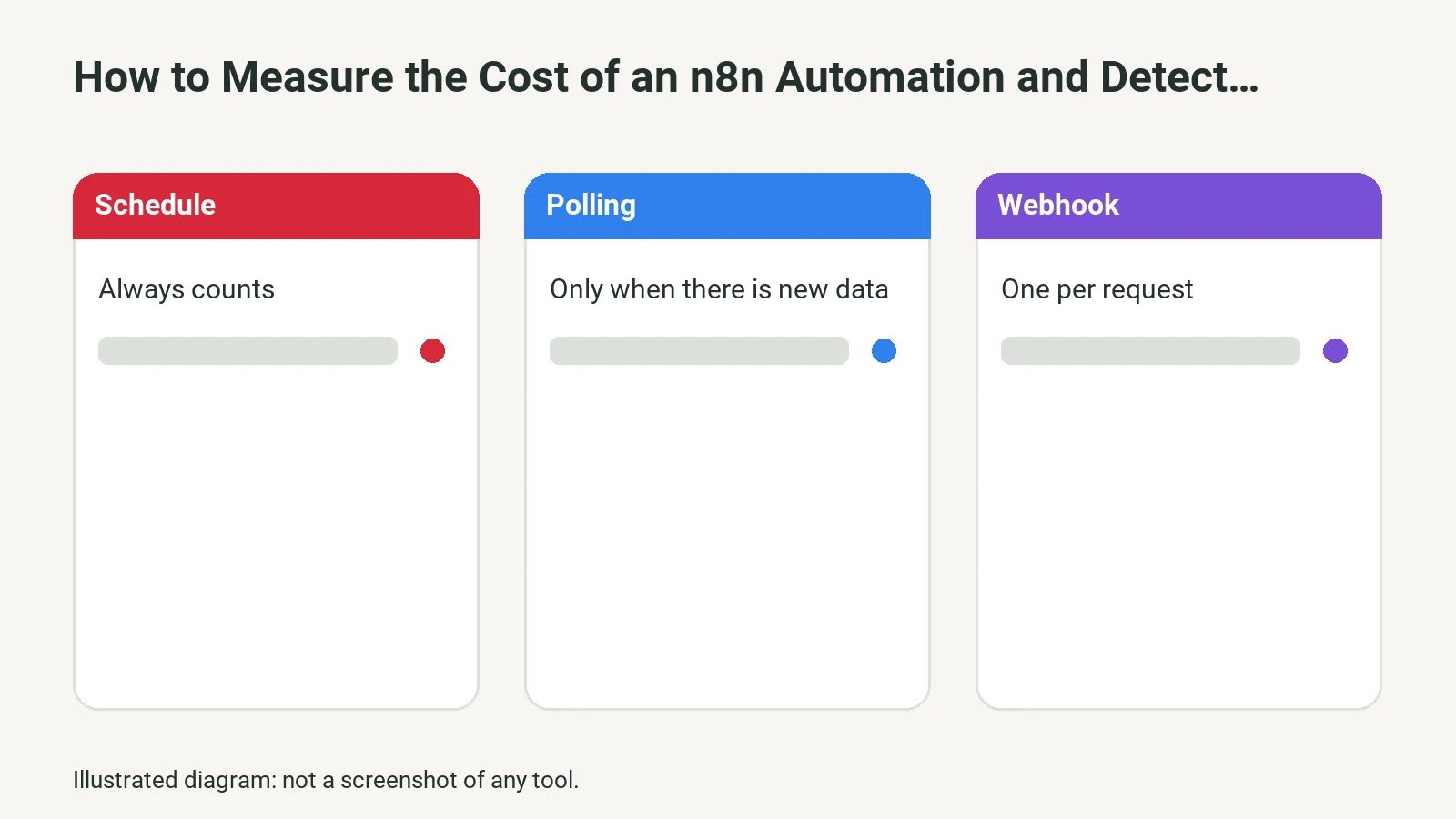
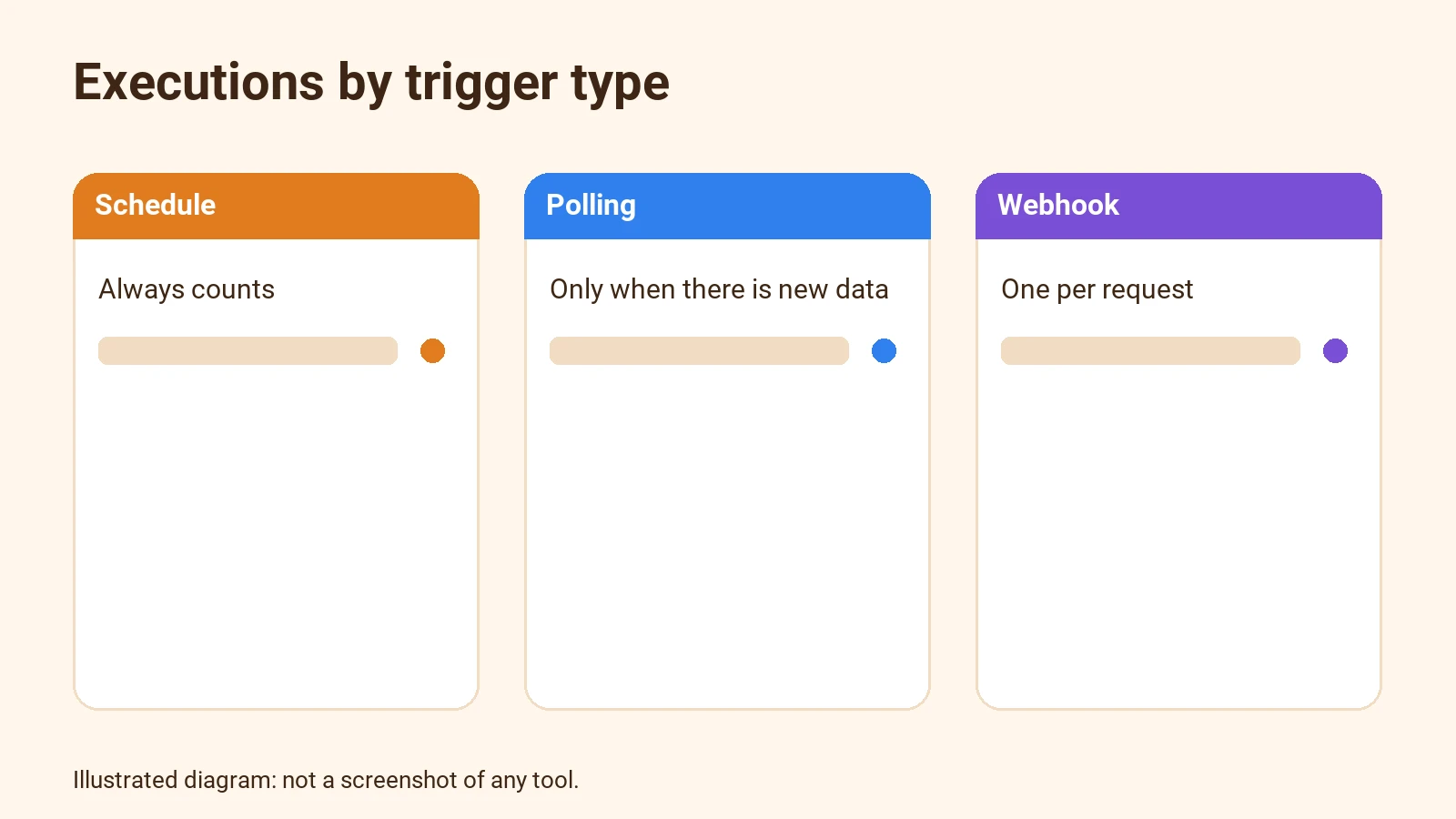
- Schedule Trigger: counts one execution each time it runs, even if there’s no new data.
- Polling Trigger (e.g., Google Drive): only counts if it finds new data.
- Webhook Trigger: counts one execution per request received.
- Sub-workflows and errors: only the main execution counts, not sub-executions or error flows.
This means that to estimate cost, you need to analyze the type of trigger and the expected frequency.
Trigger details and their impact on counting
Each trigger type behaves differently when it comes to execution counting:
- Schedule Trigger: If you schedule a workflow to run every hour, it counts one execution each time, even if no new data is processed. So, a workflow scheduled hourly will have 24 executions per day, regardless of outcome.
- Polling Trigger: This trigger checks a data source (like a Google Drive folder) and only counts an execution if it finds new data. If there’s nothing new, it doesn’t count. This helps optimize execution usage for processes where new information isn’t always available.
- Webhook Trigger: Every HTTP request to the webhook counts as one execution, even if the request is empty. However, if the request is so malformed that the workflow doesn’t start, it doesn’t count as an execution.
- Sub-workflows and error flows: If a main workflow calls another workflow via the "Execute Sub-workflow" node, only the main workflow’s execution counts toward the monthly limit. Executions of error flows also do not count.
This behavior is documented in the official n8n executions guide.
2. How to calculate the cost of an automation in n8n
The cost of using n8n depends on your chosen plan and the number of monthly executions. According to the official pricing page (n8n Pricing), the most common cloud plans are:
| Plan | Monthly price* | Included executions | Concurrency | Log retention |
|---|---|---|---|---|
| Starter | 20 €/month | 2,500 | 5 | 7 days |
| Pro | 50 €/month | 10,000 | 20/50 | 30 days |
| Business | 667 €/month | 40,000 | 200+ | 365 days |
*Prices are indicative; see n8n.io/pricing for updates.
To estimate your cost:
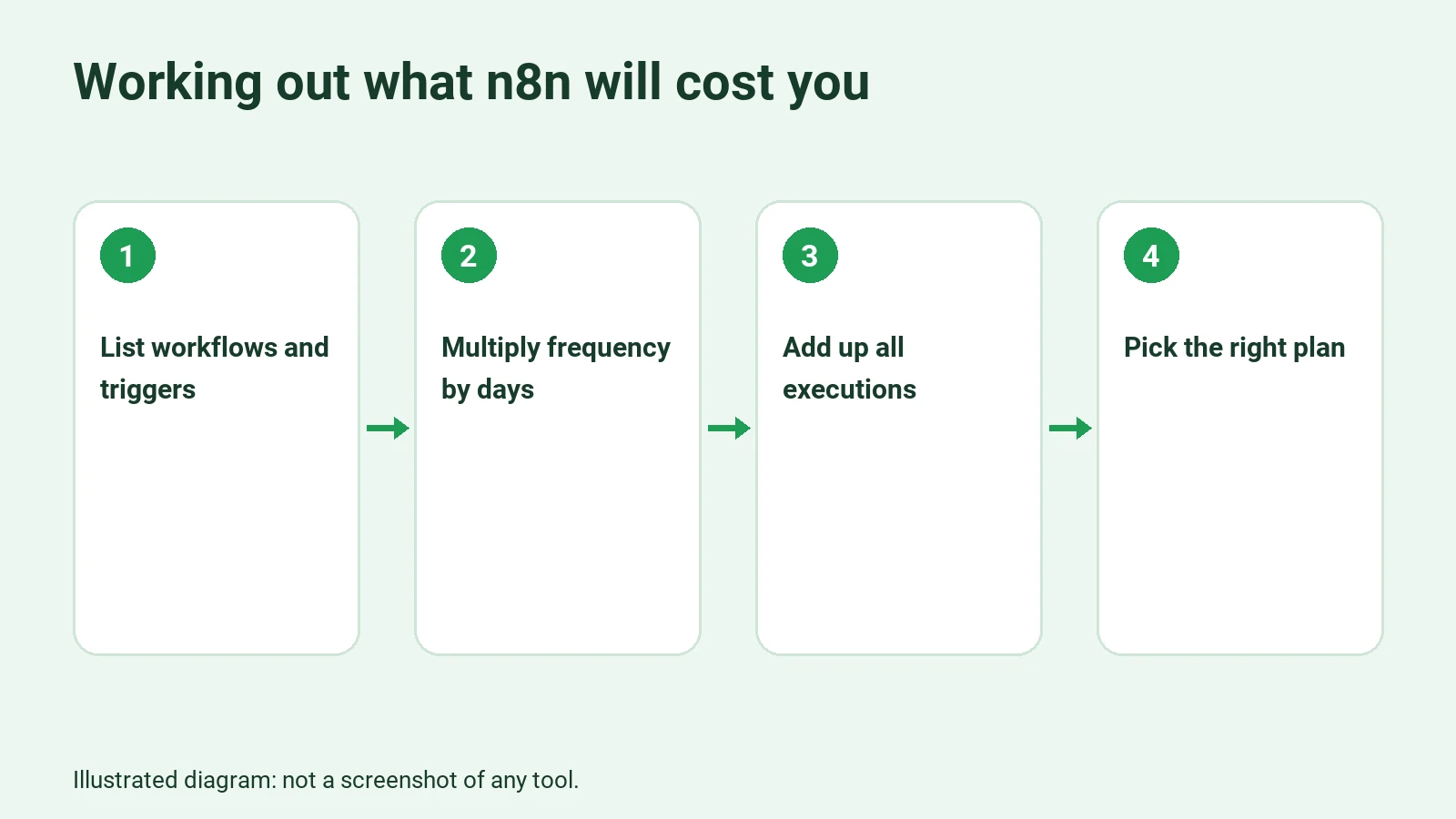
- List the workflows you plan to automate.
- Identify the trigger and frequency for each (e.g., daily, every 5 minutes, by webhook, etc.).
- Multiply the frequency by the number of days in the month to get the total monthly executions.
- Add up the executions for all workflows.
- Choose the plan that covers that volume.
Example
Suppose you have:
- One workflow running every hour (24 x 30 = 720 executions/month).
- Another triggered by webhook, about 10 times a day (10 x 30 = 300 executions/month).
- A third scheduled daily (1 x 30 = 30 executions/month).
Total: 720 + 300 + 30 = 1,050 executions/month. The Starter plan would be enough.
If you increase triggers or frequency in the future, you’ll need to check if your plan is still suitable.
Calculation details and limits
The key is to anticipate a realistic volume of executions. If you underestimate, you might lose logs sooner than expected, even though workflows keep running. If you overestimate, you’ll pay for unused capacity. That’s why it’s best to review your actual usage regularly in the n8n dashboard.
For webhooks, if you have activity spikes, check your history to see if there are days with more executions than expected. For scheduled workflows, the calculation is more predictable.
3. Monitoring executions and detecting recurring errors
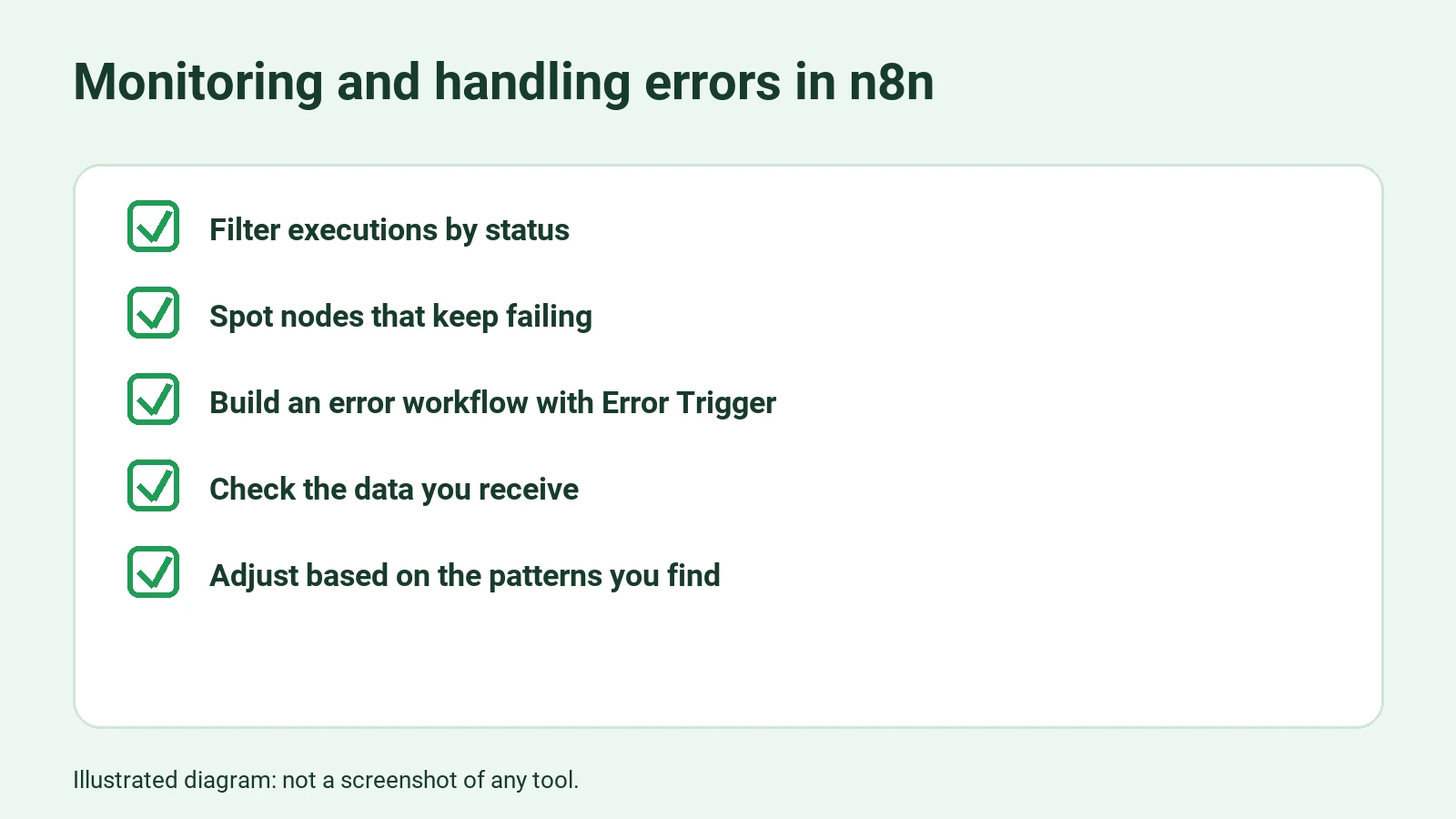
n8n lets you review the execution history from the dashboard. Here you can filter by workflow, status (success or error), and date. It’s important to check this history regularly to spot error patterns.
What to look for?
- Workflows that fail frequently.
- Errors always at the same node or step.
- Errors due to unexpected input data.
- Failures from timeouts or resource limits.
The n8n documentation (n8n Docs) recommends using error workflows to handle these cases and get automatic alerts.
More on monitoring
The n8n executions panel shows for each execution:
- Date and time.
- Status (success or error).
- Workflow involved.
- Execution duration.
- Node where the error occurred (if applicable).
- Error message.
This helps you see if failures cluster in a specific workflow, if there are recurring errors in a particular node, or if errors are due to badly formatted input data.
If you find a workflow always fails at the same point, there’s likely a structural problem (e.g., missing data validation, insufficient timeout, etc.). If errors are random, it could be due to external data or load spikes.
4. Setting up error workflows in n8n
You can create a specific workflow to handle errors. This workflow is triggered automatically if another workflow fails, letting you log the error, send an alert, or take other actions (like retrying or escalating the issue).
Step-by-step: configuring an error workflow
- Create a new workflow with the "Error Trigger" node.
- Add the steps you want (e.g., send an email or log to a table).
- In the main workflow, go to Settings and select the error workflow you created.
- Save and test by forcing an error in the main workflow.
- Check that the error workflow runs and logs the expected information.
What data does the error workflow receive?
The "Error Trigger" node receives information about:
- ID and URL of the failed execution (if it was saved in the database).
- Error message.
- Node where the failure occurred.
- Input and output data for the node.
- Whether the error happened in the trigger or another node.
If the error occurs in the main workflow’s trigger, less information is available, since the workflow didn’t start. In that case, the error workflow may receive fewer details.
5. n8n limits and requirements for monitoring and costs
- Only production executions count toward cost. Manual tests don’t count.
- Execution history is limited by your plan: if you need to review old errors, make sure you don’t exceed the retention limit.
- Advanced monitoring (external logs, metrics, etc.) is only available on higher plans.
- If self-hosted, you must manage your own infrastructure and log storage.
- Some errors may not be logged if the failure happens before the workflow starts (e.g., a malformed webhook).
Plan-specific limits
- The Starter plan keeps up to 2,500 executions or 7 days of logs, whichever comes first.
- The Pro plan extends retention to 30 days and up to 10,000 executions.
- The Business plan allows up to 40,000 executions and 365 days of retention.
This means if you have a workflow with many daily executions, you may lose history sooner than expected. Export logs if you need long-term auditing.
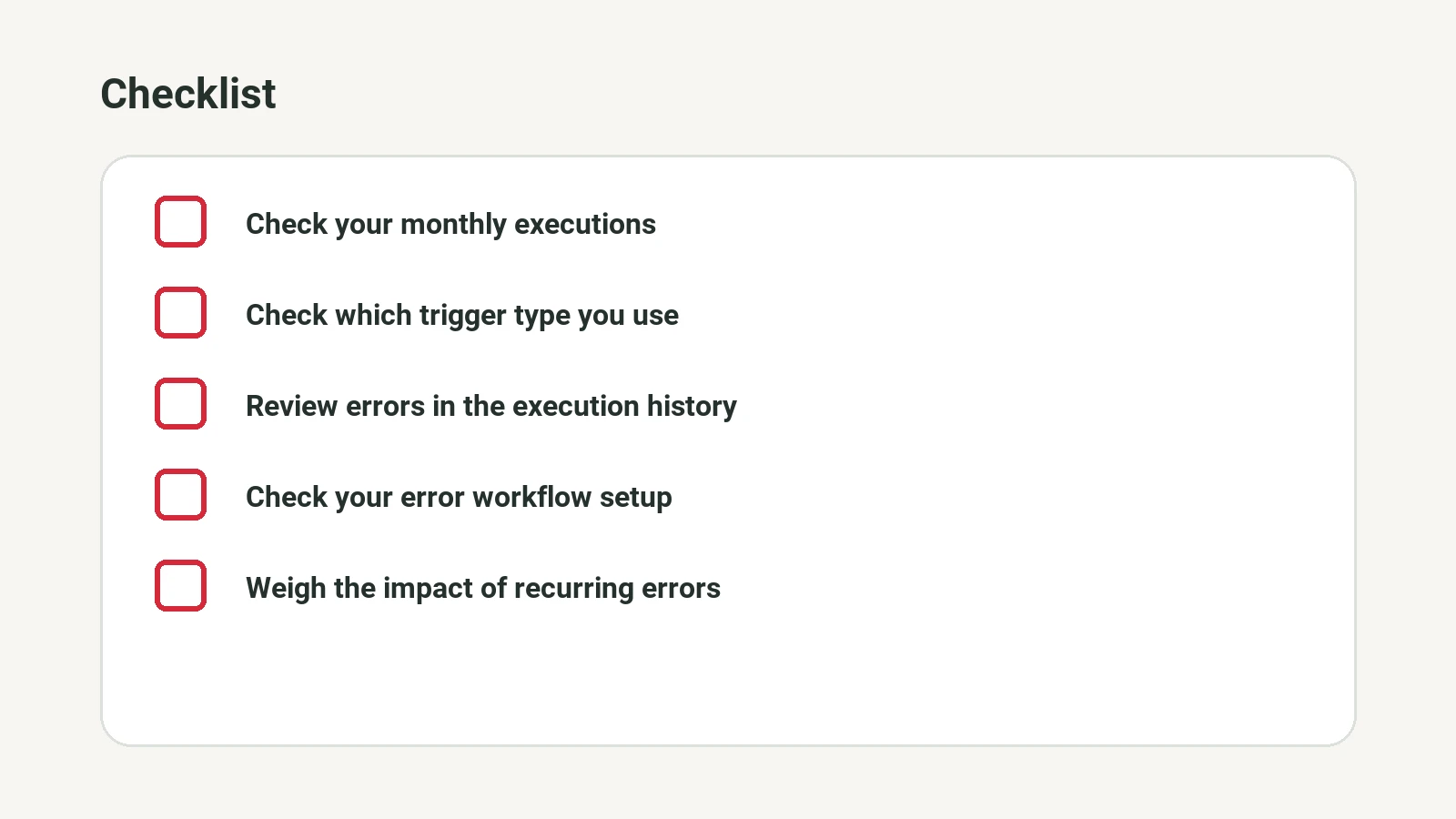
6. Checklist: what to review and what to do if something fails
| What to review | What to do if it fails |
|---|---|
| Number of monthly executions | Adjust triggers or frequency |
| Execution status | Analyze logs and look for error patterns |
| Error workflow configuration | Check it’s properly linked |
| Type of error (data, timeout, etc.) | Improve validation or split the workflow |
| Log retention | Export logs before they’re deleted |
This table is a quick reference to audit your automations and take action if you spot issues.
7. Frequently asked questions
What happens if I exceed my plan’s execution limit?
Workflows will keep running, but n8n will stop saving the oldest execution history. Flows don’t stop, but you’ll lose visibility into past runs (n8n Pricing).
How can I estimate executions if I don’t have data yet?
List your planned workflows, define the frequency for each, and multiply by the days in the month. For webhooks, estimate daily events. It’s better to slightly overestimate to avoid surprises.
Can error alerts be automated?
Yes. By setting up an error workflow, you can send automatic notifications by email, Slack, or other channels whenever a workflow fails.
What errors often go unnoticed?
Failures in triggers that don’t start the workflow (e.g., malformed webhooks) or intermittent errors from unexpected data. That’s why it’s best to review logs and set up alerts.
Where can I learn more about automation and n8n?
Check out the IA que Trabaja Academy for practical training and applied examples.
8. Example: detecting and reducing errors in a quote workflow
Let’s walk through a hypothetical case, following the requested structure: inputs, states, results, errors, and a checklist.
Example scenario
Suppose you have an n8n workflow that sends automatic quotes to clients. The workflow is triggered by a webhook each time a web form receives a quote request.
Inputs
- Client data: name, email, phone, details of the requested service.
- Date and time of the request.
Possible workflow states
- Success: The quote is generated and sent to the client.
- Error due to incomplete data: A required field is missing (e.g., email).
- Error due to external failure: The email sending system is unresponsive.
- Unexpected error: Any other unforeseen error (e.g., phone format is incorrect).
Expected results
- The client receives the quote by email.
- The manager gets a notification if there’s an error.
- Errors are logged for analysis.
Detected errors
After reviewing the execution history, you see about 8% of runs fail. Analyzing the logs, you identify two main causes:
- Incomplete data: The form allows submissions without email or phone. The workflow fails when trying to send the quote.
- External failure: The email service occasionally doesn’t respond, causing intermittent errors.
Steps taken to reduce errors
- Add a validation step to check that all required fields are present and correctly formatted.
- Set up an error workflow to log failures and notify the manager.
- Reprogram the workflow so that, in case of external failure, it retries sending up to two times before marking as failed.
- Review the failure rate monthly and adjust the workflow based on detected patterns.
Example checklist
| Input received | Workflow state | Expected result | Detected error | Corrective action |
|---|---|---|---|---|
| All data complete | Success | Quote sent | None | None |
| Missing email | Error: incomplete data | Quote not sent, error notified | Incomplete data | Add validation and notification |
| Correct email, SMTP failure | Error: external failure | Quote not sent, retry | External failure | Retry and notify if persists |
| Phone in wrong format | Unexpected error | Quote not sent, error notified | Unexpected error | Improve phone validation |
Hypothetical results check
- Before improvements, 8% of executions failed, mostly due to incomplete data.
- After adding validation and the error workflow, failures from incomplete data drop to nearly zero, leaving only external or unforeseen errors.
- The manager receives automatic alerts and can act quickly.
- The error history helps spot new patterns (e.g., spikes in email system failures).
Example limitations
This case is hypothetical and illustrates how to apply monitoring and error control in a real workflow. Results may vary depending on input data quality and the reliability of external services.
9. Comparison: n8n vs. other systems for cost and error management
| Tool | How cost is measured | Error management | Monitoring ease |
|---|---|---|---|
| n8n | Per workflow execution | Dedicated error workflows | Detailed history and logs |
| Make | Per operation (each step) | Basic error handling | Less granular |
| Zapier | Per task (each action) | Email alerts | Simple dashboard |
n8n stands out for its predictable cost model and flexible error management.
10. Resources and next steps
- If you want to outsource automation or need help monitoring costs and errors, check out the n8n and Make automation service for businesses.
- For a broader view on which processes to automate, see the article Automating processes with AI: a practical guide for SMEs and freelancers.
---
Sources:
- n8n Docs: Executions – Definition and execution limits.
- n8n Docs: Error handling – How to set up error workflows and analyze failures.
- n8n Pricing – Plan prices and limits.
Sources
- <https://docs.n8n.io/build/flow-logic/handle-errors-gracefully>