IA que trabaja
The problem: technical images and proposals without leaving your editor
In software development and technical documentation, illustrating concepts, processes, or results is a constant need. Teams often switch between the code editor and external design tools, which fragments the workflow and adds time to each delivery. When you need to adapt an image due to last-minute changes, the process can be even slower and more prone to synchronization errors between text content and visual resources.
The image generation and editing feature in GitHub Copilot App addresses this challenge. It lets you create, modify, and insert images directly from your workspace using natural language. This way, your documentation and technical proposals can be enriched with custom visuals without relying on external tools or interrupting your workflow.
What image generation and editing in Copilot App offers
Image generation in Copilot App is based on two main capabilities:
- Natural language generation: You describe the image you need, for example, "approval workflow diagram for quotes" or "interface mockup for the login screen." Copilot interprets your description and generates an image tailored to the context.
- Direct editing: If the generated image needs adjustments—such as changing colors, labels, or adding details—you can request further changes in the same chat. Editing is conversational and contextual, allowing you to iterate quickly.
These capabilities make it easier to:
- Document processes, workflows, and proposals with images aligned to the actual project content.
- Reduce reliance on external tools for basic visuals.
- Maintain consistency between code, documentation, and visual resources.
- Iterate quickly on changes, since editing is direct and doesn’t require context switching.
Example: generating a workflow diagram for an automation proposal
Suppose you’re preparing a proposal to automate quote management for an SME. You need to illustrate the approval and tracking workflow for quotes in both the technical documentation and the client presentation.
Proposed workflow
- The client requests a quote.
- The system records it and notifies the person in charge.
- The person in charge reviews and approves or requests changes.
- The system sends the quote to the client and records the status.
How you would use Copilot App
- In Copilot chat, you write: "Generate a workflow diagram showing the quote approval process described in the file 'flujo.md'. Use simple icons and clear labels."
- Copilot generates an image (for example, in PNG or SVG format) and inserts it directly into your documentation or proposal, next to the relevant text.
- If you need to change the node colors or add a note, you can request it in the same chat: "Change the approval node colors to green and add a note at the end that says 'Automated tracking.'"
- The result is saved in the repository or project folder, ready to share or version.
Example breakdown: inputs, states, results, and errors
Inputs
- Text description of the workflow: this can be in a file (e.g., 'flujo.md') or written directly in the chat.
- Additional instructions: desired format, colors, labels, notes.
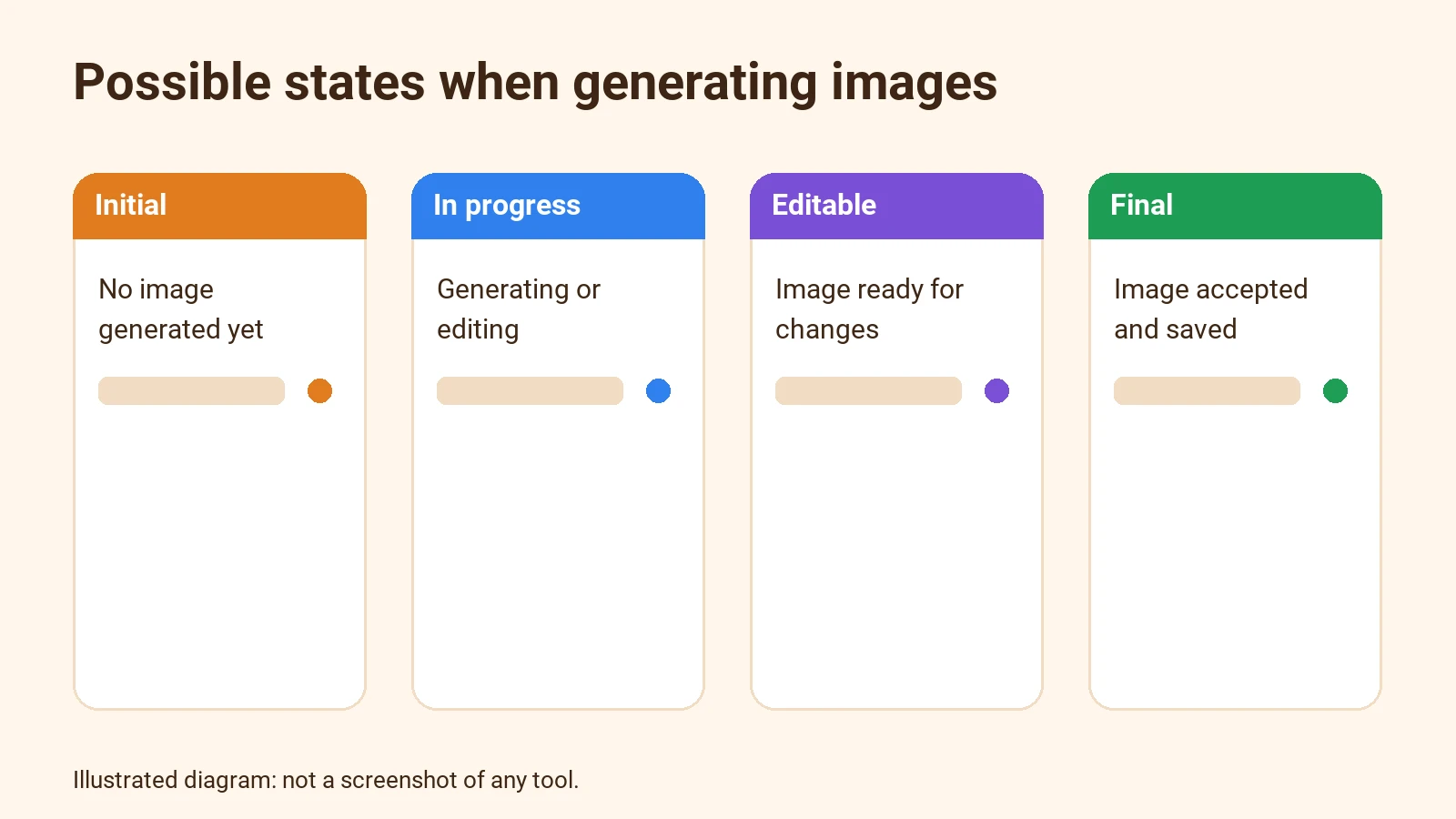
Possible states
- Initial state: No image generated. You write your request.
- In progress: Copilot interprets the request and generates a preview.
- Editable state: You review the image and can request changes.
- Final state: Image accepted, inserted in documentation, and saved in the repository.
- Error state: Copilot can’t interpret the request or the image isn’t generated correctly.
Expected results
- Image generated according to the description, in the requested format (PNG or SVG).
- Image inserted in the technical document or proposal.
- Ability to iterate on the image with new instructions.
Possible errors
- Ambiguous or incomplete description: the generated image doesn’t reflect the desired workflow.
- Unsupported format: you request a format Copilot can’t generate.
- Generation failure: Copilot doesn’t respond or shows an error message.
- Insufficient permissions: you can’t save the image in the project folder.
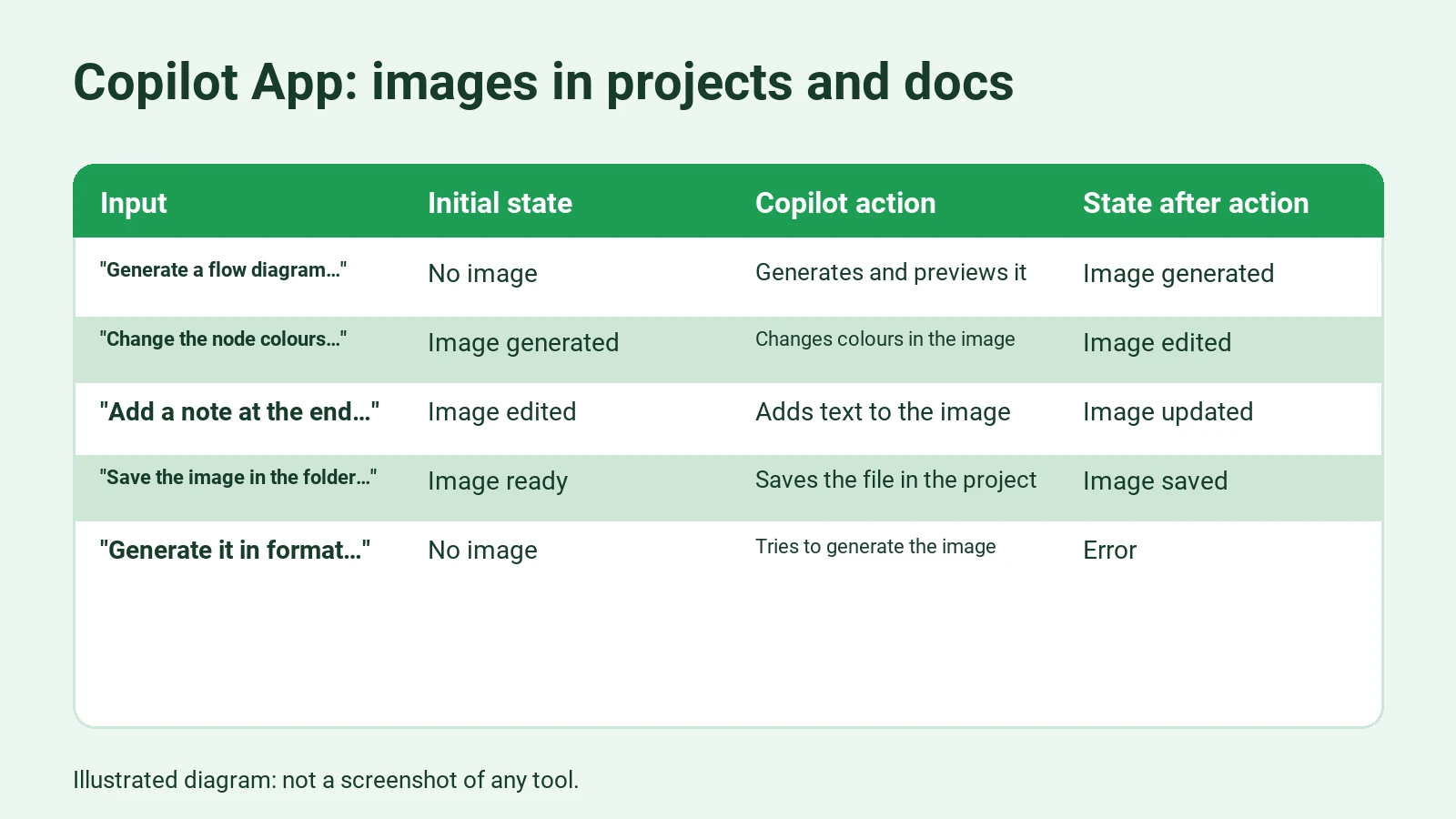
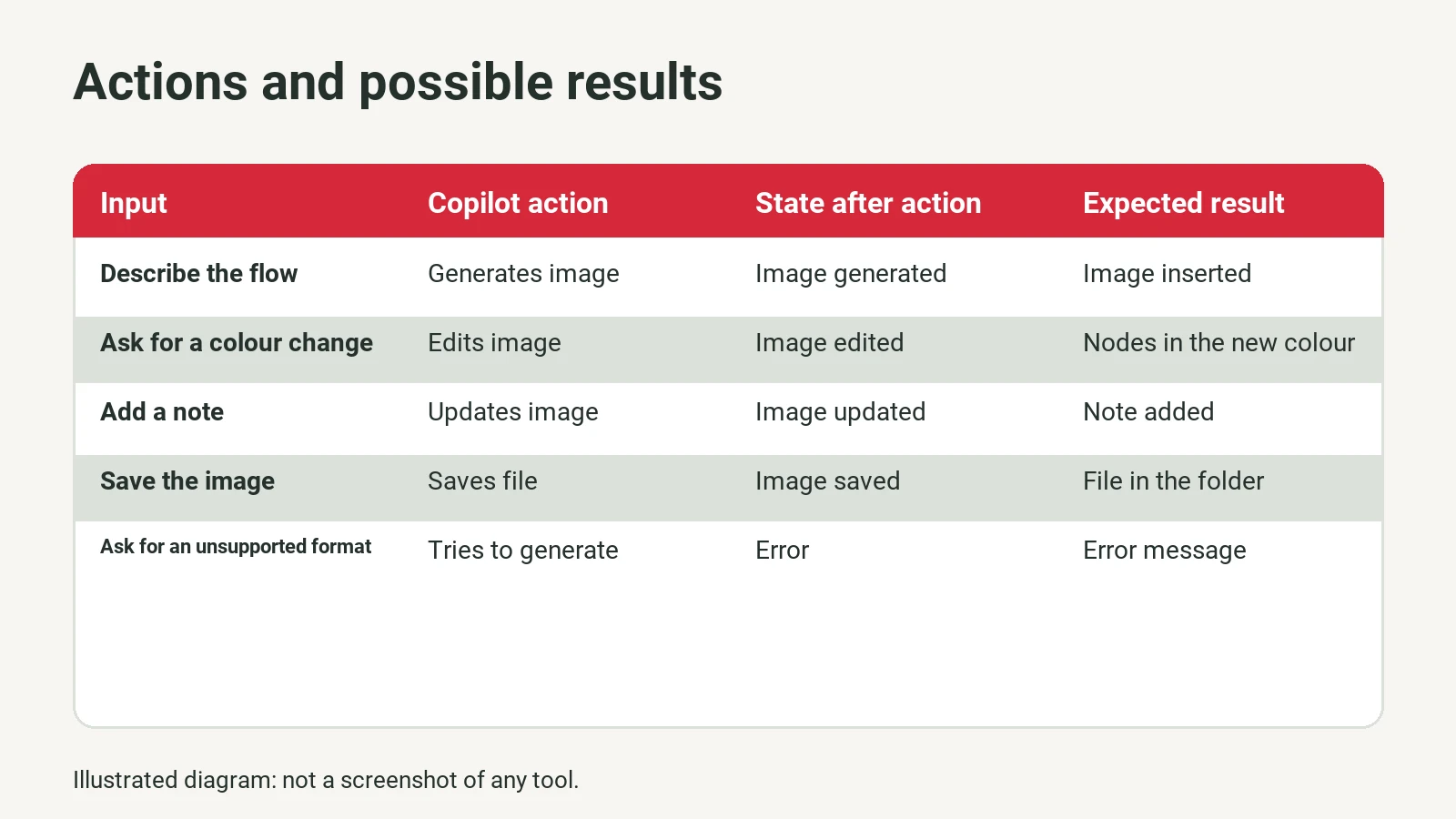
Example checklist table (hypothetical)
| Input | Initial state | Copilot action | State after action | Expected result | Possible error |
|---|---|---|---|---|---|
| "Generate a workflow diagram for the process..." | No image | Generates image and previews | Image generated | PNG/SVG image inserted | Ambiguous description |
| "Change approval node colors to green" | Image generated | Modifies colors in the image | Image edited | Image with green nodes | Unsupported color |
| "Add a note at the end: 'Automated tracking'" | Image edited | Adds text to the image | Image updated | Image with note added | Not enough space for the note |
| "Save the image in the 'recursos' folder" | Image ready | Saves file in the project | Image saved | File available in 'recursos' | Permission denied to save file |
| "Generate the image in PDF format" | No image | Attempts to generate image | Error | Unsupported format message | Unsupported format |
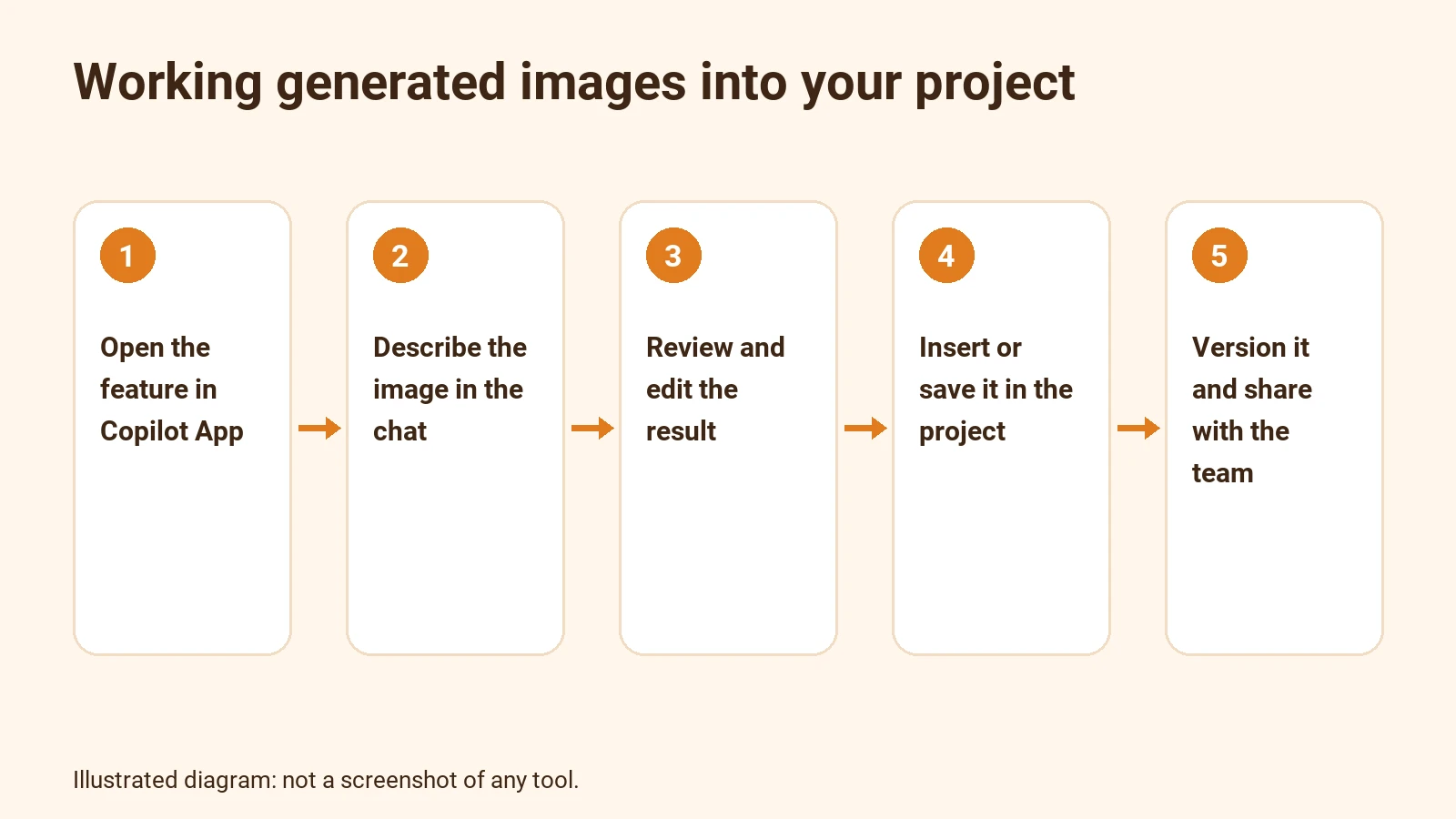
Verifiable steps to integrate generated images in proposals and documentation
- Access the feature: Image generation and editing is available in Copilot App for all plans, according to the official documentation. You may need the latest version of the app.
- Text description: In the chat, describe the image you need. The more specific you are, the more relevant the result.
- Review and edit: Copilot will show a preview of the image. You can request additional changes until it fits your needs.
- Insert into the document: The image can be inserted directly into a Markdown file, README, technical document, or saved in the project folder.
- Versioning and collaboration: Since it’s integrated with GitHub’s workflow, the image is versioned and available to your team.
Costs and requirements
Estimated cost
The feature is included in GitHub Copilot App plans, both individual and team. The cost depends on your chosen plan. According to the official GitHub Copilot page, prices may vary and are usually updated annually. There is no specific extra charge for generating images, but heavy use may be subject to fair use limits depending on your plan.
Technical requirements
- An active GitHub Copilot App subscription.
- The latest version of the app (Windows or macOS).
- Permission to install and update the app on your device.
- Access to the project files or repository where you’ll insert the images.
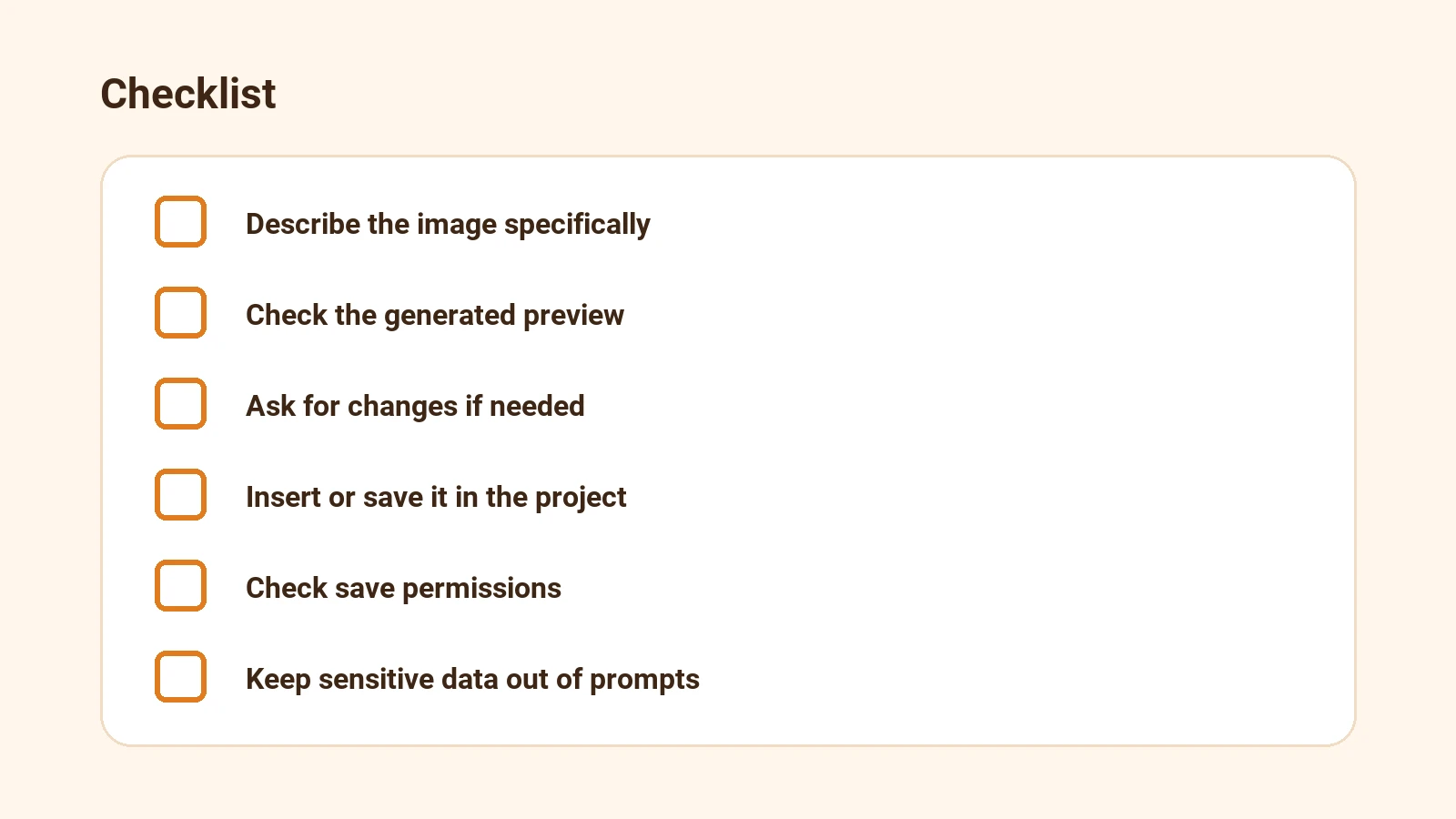
Limits and considerations
- Quality and customization: Generated images are intended for documentation and proposals, not advanced graphic design. Details and styles may be limited compared to professional tools.
- Privacy and data: If the image is based on sensitive information, review GitHub Copilot’s privacy and data use policies. It’s not recommended to include personal or confidential data in prompts.
- Compatibility: The feature is in public preview and may change. Some advanced options may not be available on all operating systems or versions.
- Limited automation: While you can automate image generation for recurring tasks (such as weekly reports), fine-grained customization still requires manual intervention.
Integration with AI agents and automation
Image generation in Copilot App can be combined with AI agents to automate broader tasks. For example:
- An agent can gather project metrics, generate a report, and ask Copilot to create explanatory charts or diagrams.
- In recurring workflows, you can schedule updated image generation (such as architecture diagrams after each deployment) using Copilot’s project automation features.
This integration helps keep documentation and proposals up to date without constant manual intervention, improving efficiency and consistency.
More ideas on automating processes with AI.
Frequently asked questions (FAQ)
Can I use the image generation feature in any type of project?
Yes, as long as you use Copilot App and have access to the project or repository. The feature is designed for both technical documentation and commercial proposals or internal materials.
What image formats are generated?
Copilot usually generates images in standard formats like PNG or SVG, suitable for technical documentation and the web. The choice may depend on your prompt and the app’s options in each version.
Can I automate images for recurring reports?
Yes, you can schedule recurring tasks in Copilot projects to generate updated images at a set frequency (for example, weekly reports). Advanced customization may require manual adjustments.
What if the generated image isn’t what I expected?
You can ask Copilot to make further adjustments or generate a new image from a more precise description. Iteration is conversational and doesn’t require leaving the editor.
Are there limits to the number of images I can generate?
No strict limits are specified, but heavy use may be subject to fair use policies depending on your plan. Check your plan’s documentation for up-to-date details.
Conclusion
Image generation and editing in GitHub Copilot App is a significant step forward for teams looking to speed up the creation of technical documentation and proposals. It lets you focus on your project’s content and logic, reducing friction between development, documentation, and presentation. While it doesn’t replace professional design tools, it efficiently covers the most common visual needs in technical and automation environments.
For companies interested in integrating AI agents and advanced automation into their workflows, combining these features with services like AI Agents for Business can add significant value.
Sources
- <https://github.blog/changelog/2026-10-28-github-copilot-app-universe-releases/>
- <https://docs.github.com/en/copilot/how-tos/github-copilot-app/working-with-projects?utm_source=agent-first-app-changelog-projects-docs&utm_medium=changelog&utm_campaign=universe-2026>
- <https://docs.github.com/en/copilot/how-tos/github-copilot-app/computer-use?utm_source=agent-first-app-changelog-computer-use-docs&utm_medium=changelog&utm_campaign=universe-2026>