IA que trabaja
The problem: manual tracking and duplicates
When a business sends quotes, it typically faces three main problems:
- Lack of systematic tracking: There’s no clear control over who has replied, who hasn’t, and when to follow up.
- Duplicate notifications: If the system isn’t well designed, a client might receive several reminders or even conflicting alerts.
- Manual status updates: Changing the status of each quote takes time and is prone to errors.
Automating this process with n8n can solve these issues, but you need to carefully manage statuses and avoid duplicates—especially when several channels (email, WhatsApp, phone) or multiple users are involved.
n8n requirements and limitations for this case
Before designing the workflow, it’s important to know the relevant requirements and limits of n8n:
- Executions: Each time the workflow is triggered (for example, when sending a quote or receiving a reply), it counts as an execution. n8n Cloud plans (see source) have monthly limits, but these are usually sufficient for small businesses.
- Data persistence: n8n is not a CRM, so it’s best to store statuses in an external database (Airtable, Google Sheets, Notion, SQL) or in n8n’s Data Tables (depending on your plan).
- Error handling: You can define error workflows to handle failures in sending or updating statuses (source).
- Waits and reminders: The Wait node lets you pause the workflow until a date or event—useful for scheduled reminders (source).
- Long waits: Design and test reminders using the Wait node, and check your hosting limits before activating the workflow. Don’t keep an email connection open for days.
Basic structure of a tracking workflow
A robust quote tracking workflow usually includes:
- Quote entry: When a quote is sent, it’s recorded in the database with status “Sent” and the date.
- Response tracking: If the client replies (by email, form, WhatsApp, etc.), the status is updated to “Replied” or “Accepted/Rejected”.
- Scheduling reminders: If there’s no response after X days, a reminder is scheduled.
- Avoiding duplicates: Before sending a reminder, the workflow checks the current status to avoid alerting clients who have already replied.
- Error management: If sending or updating fails, an error workflow logs the issue or notifies someone responsible.
Example: tracking quotes by email
Suppose your company sends quotes by email and wants to automate the follow-up:
- When a quote is sent, it’s recorded in a table (for example, Airtable) with fields: ID, email, send date, status (“Sent”).
- If the client replies, a workflow detects the response (via email integration) and updates the status to “Replied”.
- If 5 days pass without a reply, an automatic reminder is sent.
- If the client replies after the reminder, the workflow detects it and updates the status, preventing further alerts.
Verifiable steps in the workflow
- Quote registration: When the quote is sent, the workflow adds a row in the table with status “Sent” and the date.
- Wait node: The workflow uses a Wait node to pause for 5 days.
- Status check: When resumed, the workflow checks the table. If the status is still “Sent,” it continues; if it’s “Replied,” it ends.
- Send reminder: If needed, a reminder email is sent and the action is logged (for example, by adding a “Reminder sent” field).
- Duplicate management: If the client replies at any time, another workflow updates the status and cancels future alerts.
- Error handling: If sending or updating fails, an error workflow logs the failure and, if desired, notifies someone responsible.
This approach minimizes the risk of duplicates, as every action checks the database status before proceeding.
---
Example breakdown: inputs, statuses, outcomes, and errors
Below is a detailed breakdown of the proposed example, clearly distinguishing what is hypothetical. Inputs, possible statuses, expected outcomes, potential errors, and a check table for possible scenarios are included.
System inputs
The main inputs in this workflow would be:
- New quote sent: An entry is created in the database with client data, date, and initial status “Sent”.
- Client response: This may arrive by email (automatically detected) or another channel (manual update).
- Scheduled reminder: The workflow reviews pending quotes and decides whether to send a reminder.
Each input triggers a workflow execution, which may then trigger other actions.
Possible statuses for a quote
The most common statuses a quote can have in this system are:
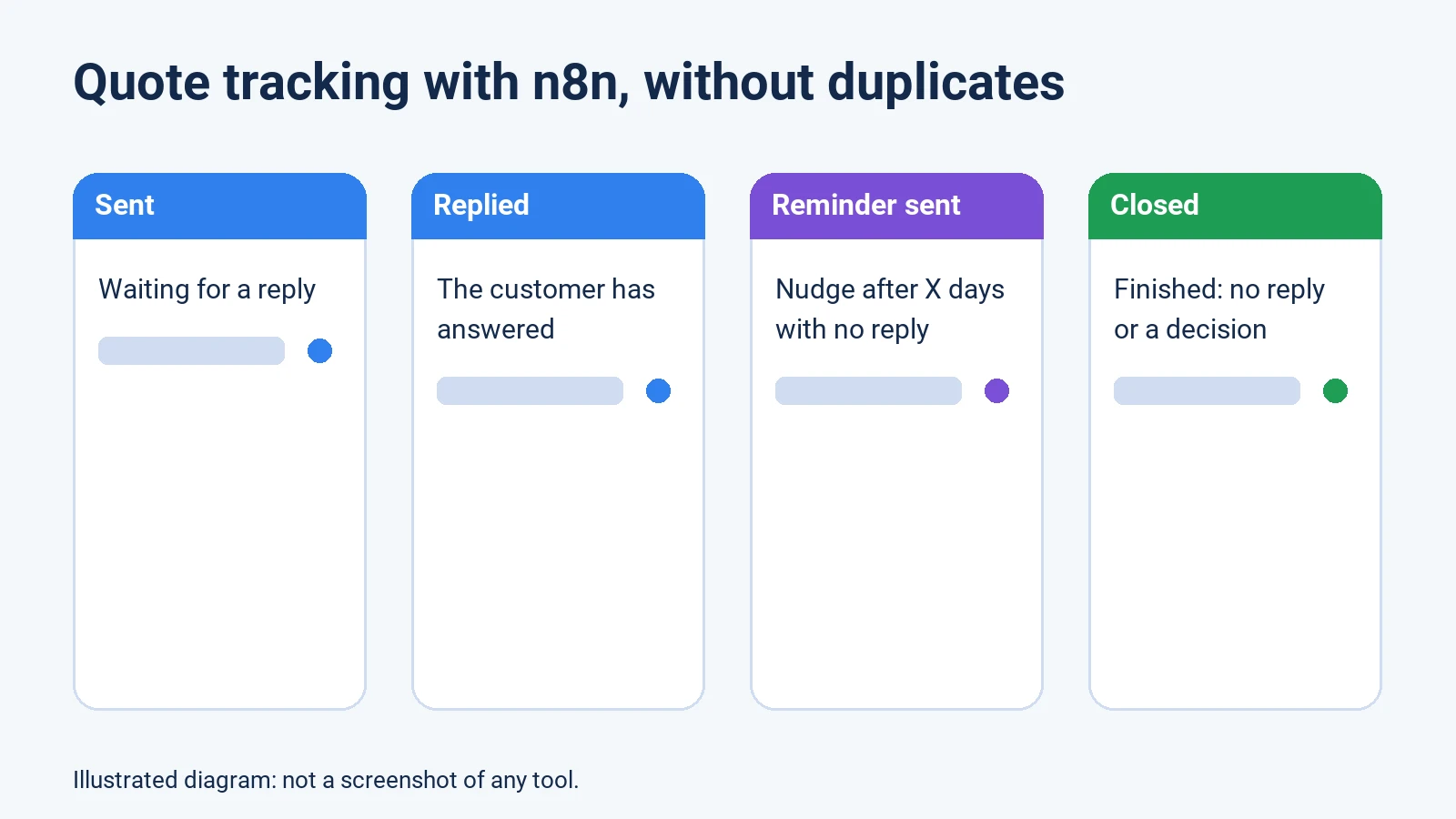
- Sent: The quote has been sent and is awaiting a response.
- Replied: The client has replied (accepting, rejecting, or requesting clarification).
- Accepted: The client accepts the quote.
- Rejected: The client rejects the quote.
- Reminder sent: At least one reminder has been sent, but there’s still no response.
- Closed: The case is considered finished (for example, after several reminders without a response or by internal decision).
In practice, “Replied”, “Accepted”, and “Rejected” can be variants of a response, but it’s useful to distinguish them for later analysis.
Expected workflow outcomes
The workflow should ensure that:
- Every quote sent is recorded with status “Sent” and the date.
- If the client replies before the reminder, the status changes to “Replied” and no further alerts are sent.
- If there’s no response after the defined period (for example, 5 days), a reminder is sent and the record is updated.
- If the client replies after the reminder, the status changes to “Replied” and no further alerts are sent.
- If there’s still no response after several reminders, the quote can be marked as “Closed”.
- The design goal is to avoid duplicate alerts; this requires a unique key and checking status right before sending.
- If there’s an error (for example, email sending or database update fails), the failure is logged and someone responsible is notified.
Possible errors and how to handle them
The most common errors in this workflow are:
- Email sending failure: The mail server doesn’t respond or the account is misconfigured.
- Database update failure: The connection to the external database fails or there’s a permissions error.
- Undetected response: The client replies via a non-integrated channel and the status isn’t updated, which may trigger an unnecessary reminder.
- Interrupted execution: Due to time or resource limits, the workflow stops before completing.
For each of these errors, the workflow should trigger a sub-workflow that logs the incident (for example, in a log table) and, if necessary, notifies someone responsible for manual review.
Scenario check table (hypothetical)
Here’s a check table summarizing possible scenarios for an individual quote:
| Initial input | Status after sending | Client replies before 5 days? | Reminder sent? | Client replies after reminder? | Expected final status | Duplicates? | Error handled? |
|---|---|---|---|---|---|---|---|
| Quote sent | Sent | Yes | No | - | Replied/Accepted | No | Yes |
| Quote sent | Sent | No | Yes | Yes | Replied/Accepted | No | Yes |
| Quote sent | Sent | No | Yes | No | Closed | No | Yes |
| Quote sent | Sent | Replies via non-integrated channel | Yes (by mistake) | - | Replied (manual) | Yes | Yes |
| Quote sent | Sent | No | Reminder fails | - | Sent (no change) | No | Yes |
| Quote sent | Sent | No | Yes | Status update fails | Reminder sent | No | Yes |
Notes on the table:
- In the “Replies via non-integrated channel” case, the system doesn’t detect the response and sends a reminder, which can be considered a duplicate. To avoid this, you’d need to update the status manually or integrate more channels.
- In all cases, the workflow should handle errors by logging failures and notifying as needed.
Details of each case (hypothetical)
1. Quote sent and client replies within 5 days
- Input: Quote sent, status “Sent”.
- Action: Client replies within 5 days (by email).
- Workflow: System detects the reply, updates status to “Replied”.
- Result: No reminder sent. Process ends correctly.
- Errors: If the update fails, it’s logged and notified.
2. Quote sent, no reply, reminder sent, client replies after reminder
- Input: Quote sent, status “Sent”.
- Action: No reply in 5 days. System sends reminder and updates record (“Reminder sent” field).
- Later action: Client replies after receiving the reminder.
- Workflow: System detects the reply, updates status to “Replied”.
- Result: No further alerts sent. Process ends correctly.
- Errors: If sending the reminder or updating fails, it’s logged and notified.
3. Quote sent, no reply, reminder sent, still no reply
- Input: Quote sent, status “Sent”.
- Action: No reply in 5 days. System sends reminder.
- Later action: No reply after the reminder.
- Workflow: After an additional period (for example, another 5 days), the system may mark the quote as “Closed”.
- Result: The case is closed without a response.
- Errors: If sending or updating fails, it’s logged and notified.
4. Reply via non-integrated channel
- Input: Quote sent, status “Sent”.
- Action: Client replies by phone or WhatsApp (not integrated).
- Workflow: System doesn’t detect the reply and, when the time comes, sends the reminder.
- Result: Client receives an unnecessary reminder (duplicate).
- Solution: Update the status manually or integrate more channels. The workflow should allow manual updates for these cases.
5. Reminder sending failure
- Input: Quote sent, status “Sent”.
- Action: No reply in 5 days. System tries to send the reminder but fails (e.g., email error).
- Workflow: Error workflow logs the failure and notifies someone responsible.
- Result: Quote remains in “Sent” status. The responsible person can decide whether to retry or contact manually.
6. Status update failure after reminder
- Input: Quote sent, status “Sent”.
- Action: No reply in 5 days. System sends the reminder but fails to update the “Reminder sent” field.
- Workflow: Error workflow logs the failure and notifies.
- Result: The quote may receive another reminder by mistake if the system doesn’t detect one was already sent. These cases should be reviewed manually.
---
Estimated costs and sources
- n8n Cloud Starter: Around €20/month (annual) for 2,500 executions per month (source). If you handle 100 quotes per month and each involves 2–3 executions (send, reminder, possible reply), the limit is enough for most small businesses.
- External database: Airtable, Notion, or Google Sheets offer free plans with generous limits for this use. For more security or integration, you can use an SQL database.
- Own infrastructure: Includes server, backups, maintenance, and monitoring in the estimate. The price depends on the provider and required resources; no fixed rate is assumed.
Technical requirements and considerations
- Database access: The workflow must be able to read and write to the table where quotes and statuses are recorded.
- Email integration: To detect automatic replies, you need access to the email account (IMAP/SMTP) or a compatible API.
- Permissions and privacy: Make sure you comply with data protection regulations, especially if you handle clients’ personal data.
- Error handling: Define an error workflow to log and notify about problems (for example, if sending a reminder fails).
Limits and potential issues
- Long executions: To wait for days, use Wait or a scheduled review of pending quotes. Test your hosting’s behavior and recovery after restarts before activating alerts.
- Duplicates from replies outside the workflow: If a client replies by another channel (phone, WhatsApp), you need to update the status manually or integrate that channel to avoid unnecessary alerts.
- Integration errors: If the database or email connection fails, alerts may not be sent. That’s why error handling is important.
- Scalability: For very high volumes, use a robust database and monitor execution usage.
Frequently asked questions
Can I use only n8n without an external database?
You can use n8n’s Data Tables (depending on your plan), but for more flexibility and to avoid lock-in, an external database is recommended.
What happens if the client replies after the reminder?
The workflow should update the status to “Replied” and cancel future alerts. If several workflows are active, all should check the status before acting.
How do I prevent multiple reminders being sent to the same client?
The workflow should always check the current status before sending an alert. You can also log the last reminder date and limit the number of alerts per quote.
What if sending the reminder fails?
The error workflow can log the failure and notify someone responsible to review the case manually.
Can I customize the messages and timeframes?
Yes, you can set both the content of alerts and the waiting days, using variables in the workflow and fields in the database.
Analysis: advantages and limitations of this approach
Automating quote tracking with n8n offers several advantages:
- Reduces manual work and missed follow-ups.
- Avoids duplicates and communication errors.
- Lets you scale the process without increasing admin workload.
However, it doesn’t replace a full CRM and requires some maintenance, especially if communication channels or data structure change. Also, error handling and status updates must be well designed to avoid situations where a client receives incorrect alerts.
In summary, n8n is a flexible and powerful tool for automating quote tracking, as long as you combine it with a suitable database and carefully design status checks and error workflows. If you need a ready-to-use solution, see the automatic alerts and tracking service or learn more in automation with n8n.
For more automation ideas with n8n, see the article What can you automate with n8n: 20 real ideas and how to start.