IA que trabaja
In many companies, automations become opaque systems over time. What started as an efficient solution can end up as a source of dependency and risk. When the provider stops offering support, raises prices, or you simply decide to migrate to another tool, lack of documentation leads to weeks of extra work, unexpected errors, and sometimes loss of key information. Proper documentation is the only way to ensure continuity and make it easier to switch providers or technical teams.
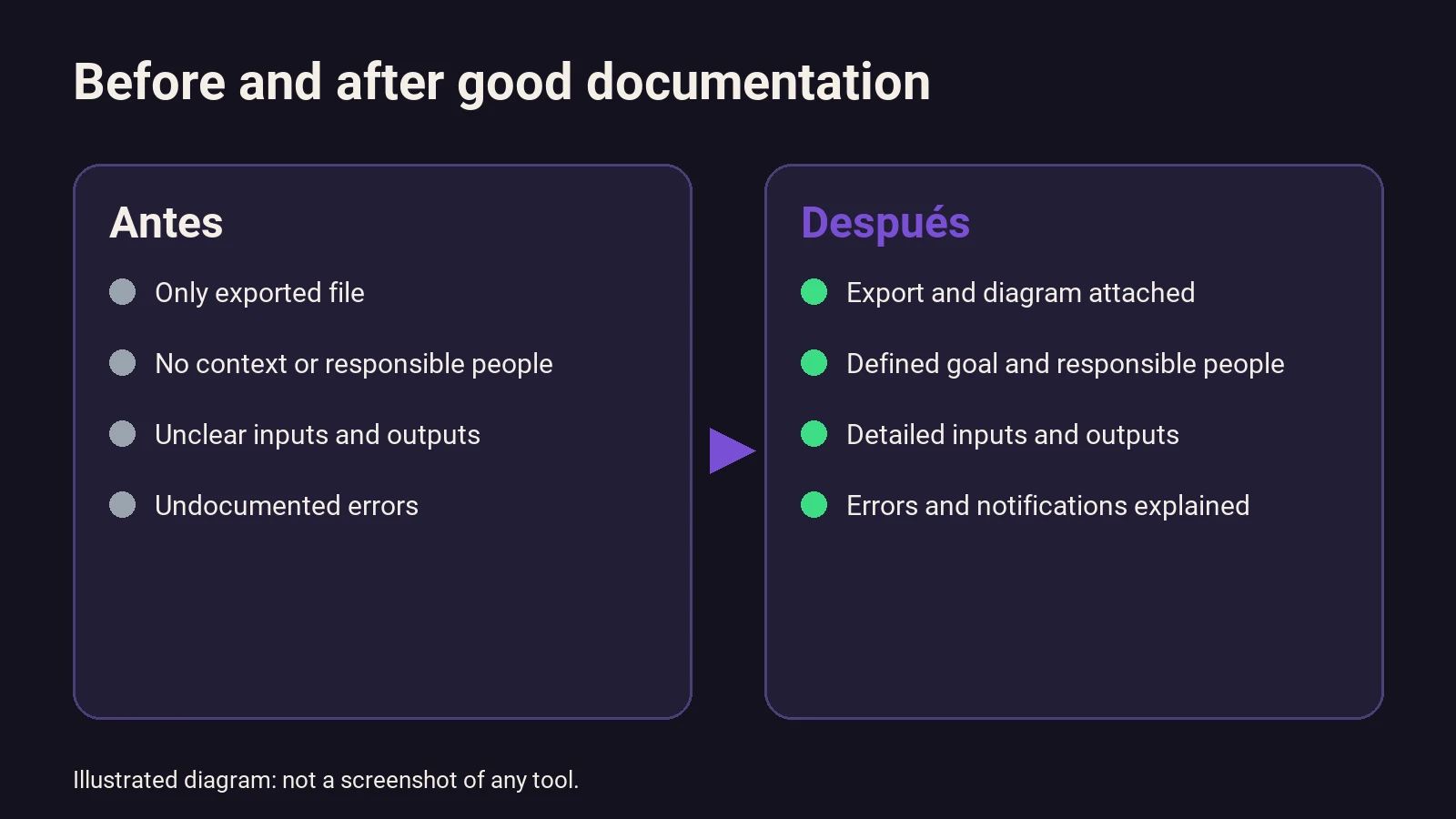
Experience shows that documentation often remains superficial: an exported file, a screenshot, or at best, a diagram. However, this is rarely enough for someone else to understand, maintain, or migrate the workflow without having to rebuild it from scratch. Documentation must be clear, concrete, and aimed at enabling anyone—even those who didn’t participate in the development—to understand and work with the automation.
What should automation documentation include?
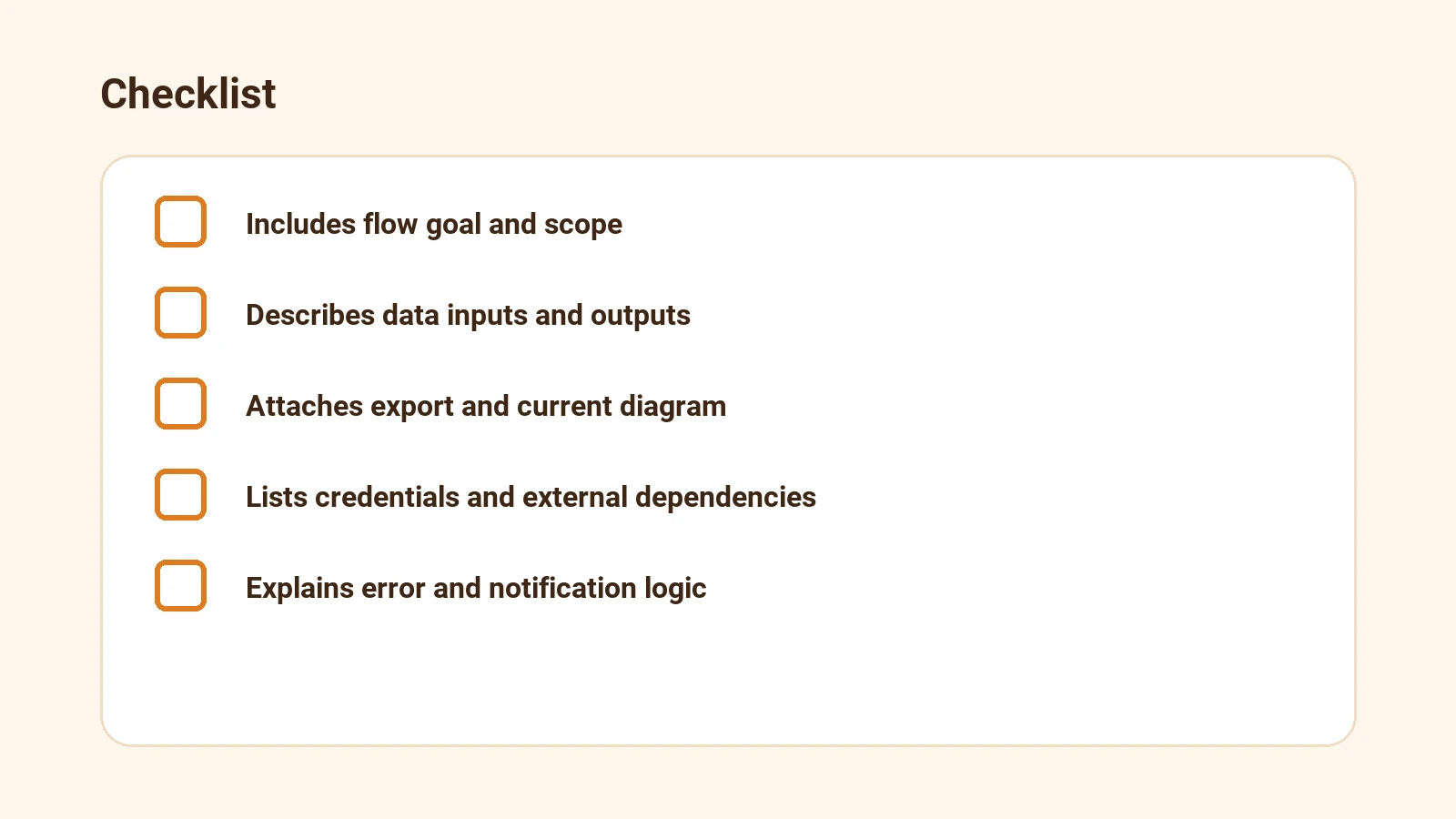
Useful documentation goes far beyond an exported file or a flow diagram. Its goal is to allow anyone to:
- Understand what the automation does and why it exists.
- Know what data goes in and out, and in what format.
- Identify which external systems, credentials, or APIs it uses.
- Understand the operating logic, including error cases and notifications.
- Replicate, modify, or migrate the workflow to another tool or provider.
Well-structured documentation should answer questions like: What is this workflow for? What data does it need and where does it come from? What happens if part of the process fails? Who receives notifications? What credentials or access are essential?
Example: weekly report sending automation
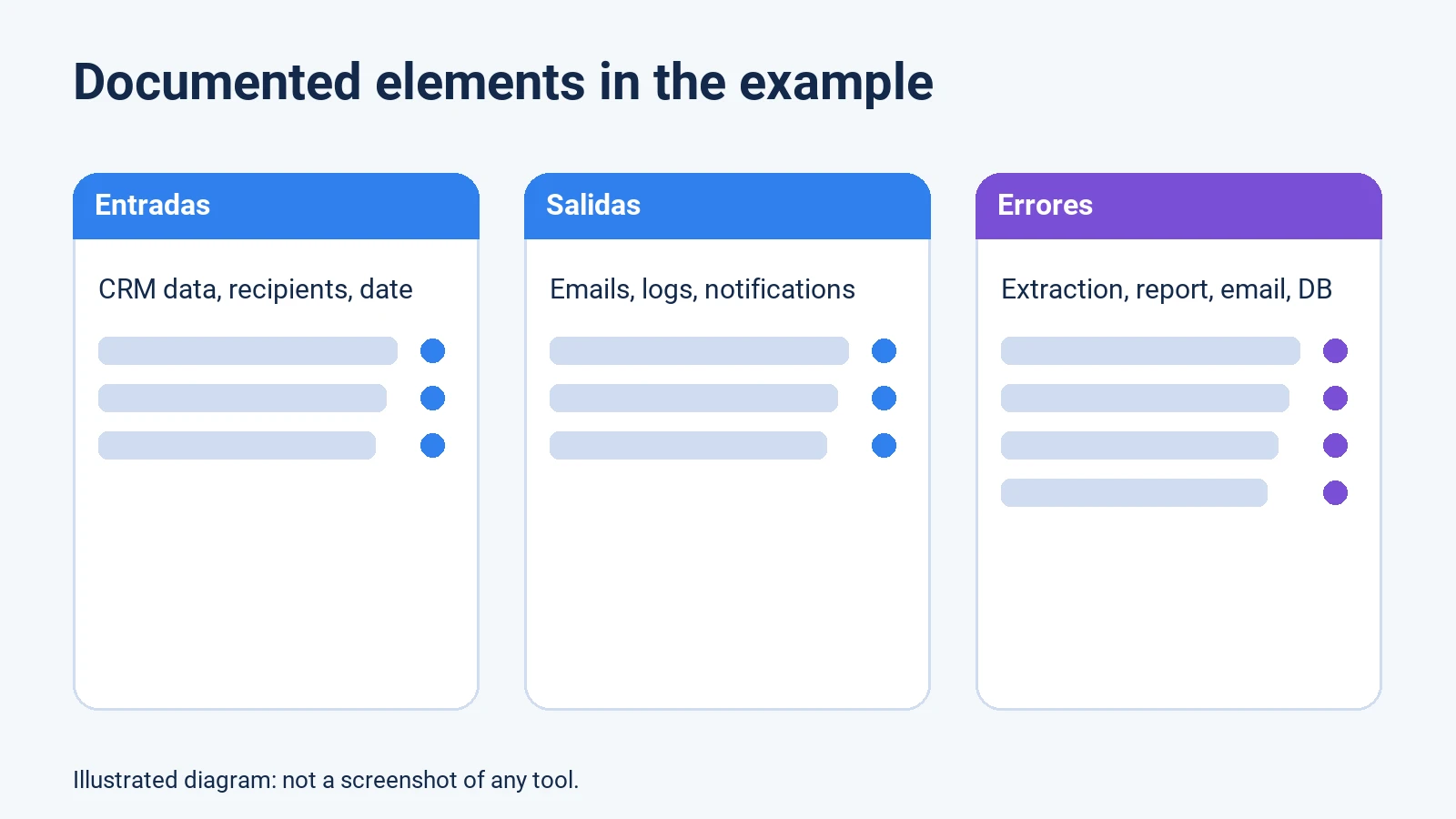
To illustrate the process, imagine you have an automation in n8n that collects sales data from a CRM, summarizes it, and sends a weekly report by email to several managers. Documenting this workflow means:
- Explaining the goal: automate report sending to save time and prevent omissions.
- Describing the inputs: CRM data, dates, recipients.
- Detailing the outputs: sent emails, execution logs.
- Including the exported workflow file and a visual diagram.
- Listing required credentials: CRM access, SMTP for emails.
- Explaining error handling: Is there a retry? Is someone notified?
This example shows, in concrete terms, how documentation should be structured so anyone can maintain or migrate the automation.
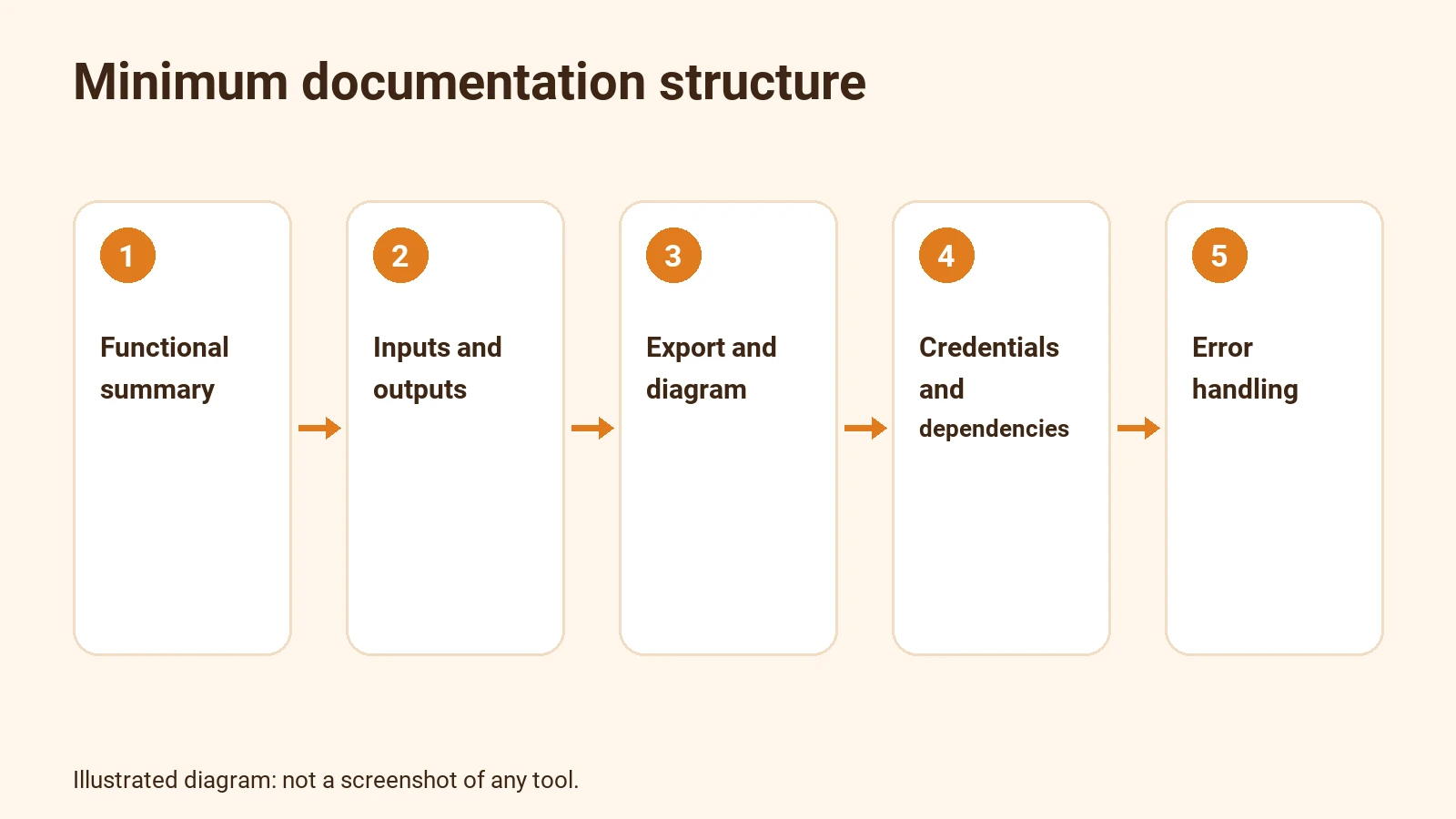
Minimum requirements for useful documentation
- Functional summary: What the automation does, its purpose, and who uses it.
- Inputs and outputs: What data it needs and what it generates.
- Workflow export: Exported file (for example, JSON in n8n) and updated diagram.
- Credentials and dependencies: What access, APIs, or external services are required.
- Error handling: What happens if part of the workflow fails, how errors are notified.
- Change history: Who changed what and when (if the tool allows).
These requirements ensure the documentation is genuinely useful and not just a superficial list of nodes or steps.
Example in detail: documenting an n8n workflow
Below is a detailed example, breaking down each documentation element. This is a hypothetical example to illustrate how information should be structured.
1. Functional summary
- Workflow name: Weekly sales report sending
- Purpose: Automate sending sales reports to team managers
- Frequency: Weekly, Mondays at 8:00
- Target users: Sales managers for each area
- Automation owner: Ana López (IT)
2. Inputs and outputs
- Inputs:
- Sales data extracted from the CRM via REST API (endpoint
/ventas/semana) - List of recipients from an internal table (
responsables_ventas) - Execution date (generated automatically)
- Outputs:
- Email with attached report (PDF) sent to each manager
- Execution record in internal log (
logs_informes) - Error notification to support if data extraction fails
3. Export and diagram
- Exported file:
informe-ventas-semanal.json(attached in the documentation) - Visual diagram: Screenshot of the workflow in n8n, showing main nodes and connections
Workflow breakdown (hypothetical)
- Node 1: Weekly trigger
- Set to run Mondays at 8:00
- Node 2: Get data from CRM
- REST API with
ventas_botcredentials - Extracts last week’s sales
- Node 3: Process data
- Sums total sales, groups by manager
- Node 4: Generate report
- Creates a PDF with summarized data
- Node 5: Get recipients
- Queries the internal managers table
- Node 6: Send email
- Corporate SMTP, user
informes@empresa.com - Attaches the PDF report
- Node 7: Log execution
- Saves date, recipients, and status in
logs_informes - Node 8: Error handling
- If data extraction fails, retries once
- If it fails again, sends alert to support
- If email sending fails, logs the error and notifies IT
4. Credentials and dependencies
- CRM: API access with user
ventas_bot(read-only sales permissions) - Email: Corporate SMTP, user
informes@empresa.com(authenticated with app password) - Internal database: Read-only access to
responsables_ventastable and write access tologs_informes
Notes on credentials
Credentials are not included in the documentation, but you should specify:
- Where they are stored (corporate password manager)
- Who can provide them (IT team)
- How to request them in case of migration
5. Error handling
- Errors in CRM data extraction:
- Workflow automatically retries once
- If it fails again, a sub-workflow sends an email to support with the error
- The error is logged internally
- Errors in email sending:
- Failure is logged
- Notification sent to IT
- No automatic retry to avoid duplicate emails
- Errors in report generation:
- Workflow stops and notifies support
- Errors accessing internal database:
- Error is logged and IT is notified
6. Change history
- Last modified: 2026-10-01, by Ana López
- Recent changes:
- 2026-10-01: Added new recipient (Carlos Ruiz)
- 2026-09-15: Updated report format (added bar chart)
- 2026-08-10: Improved error handling for email sending
7. Attachments
- Exported file:
informe-ventas-semanal.json - Diagram screenshot:
flujo-informe-ventas.png - Functional document:
doc-informe-ventas.md
Inputs, states, results, and errors: example in detail
To make documentation genuinely useful, it should detail possible workflow states, expected results, and common errors. Below is an expanded version of the previous example, clearly marked as hypothetical.
Inputs
- Sales data from CRM
- Format: JSON
- Fields: date, manager, amount, product
- Example input: ``
json [ {"fecha": "2026-09-25", "responsable": "Juan Pérez", "importe": 1200, "producto": "A"}, {"fecha": "2026-09-26", "responsable": "Ana Gómez", "importe": 800, "producto": "B"} ]``
- List of recipients
- Format: internal table
- Fields: name, email, area
- Example input: | name | email | area | |-------------|------------------------|---------| | Juan Pérez | juan.perez@empresa.com | North | | Ana Gómez | ana.gomez@empresa.com | South |
- Execution date
- Format: YYYY-MM-DD
- Generated automatically by the trigger
Possible workflow states
- Successful execution: All nodes run correctly, reports are sent, and execution is logged.
- Error in data extraction: The CRM data node fails (e.g., API unavailable).
- Error in report generation: The PDF creation node fails (e.g., corrupt data).
- Error in email sending: The SMTP node fails (e.g., incorrect credentials or server unavailable).
- Error accessing internal database: Failure reading or writing to recipients or logs tables.
Expected results
- On success:
- All managers receive an email with the attached weekly report.
- The log records the date, recipients, and status "success".
- On recoverable error (e.g., temporary CRM failure):
- The workflow retries the operation once.
- If the second attempt succeeds, the workflow continues and the retry is logged.
- On unrecoverable error:
- Support or IT is notified, depending on error type.
- The error is logged with details.
- No incomplete reports are sent.
Common errors and handling
- CRM authentication error
- Cause: expired or changed credentials
- Handling: workflow stops, notifies support, and logs the error
- SMTP server failure
- Cause: mail server unavailable
- Handling: error is logged and IT is notified; no automatic retry
- Incomplete or corrupt data
- Cause: CRM API returns incomplete data
- Handling: workflow stops and notifies support
- PDF generation error
- Cause: poorly formatted data or library incompatibility
- Handling: workflow stops and notifies support
State and error checklist table (hypothetical)
| Workflow state | Workflow action | Notification | Log entry |
|---|---|---|---|
| Successful execution | Send emails, log success | No | Yes |
| Data extraction error | Retry once | If fails, notify support | Yes |
| Report generation error | Stop workflow | Notify support | Yes |
| Email sending error | Log error, no retry | Notify IT | Yes |
| Internal DB access error | Log error, stop workflow | Notify IT | Yes |
This table helps anyone check the automation’s status and understand error handling, making maintenance and migration easier.
Verifiable steps to document an automation
- Gather functional and technical information: Talk to users and review the workflow to understand what it does and what it needs.
- Export the workflow: Use the tool’s export feature (for example, in n8n, export to JSON from the workflow menu; source: n8n docs).
- Create or update the diagram: Screenshot or graphical export.
- List credentials and dependencies: Note what access, APIs, and external services the workflow uses.
- Describe error handling: Explain what happens if part of the workflow fails and how notifications work.
- Store and version the documentation: Save everything in a repository accessible to the team (could be a shared folder, version control system, or the platform itself if supported).
These steps are verifiable and allow you to audit documentation at any time.
Comparison table: documentation formats and portability
| Format | Portability | Ease of editing | Requires specific tool |
|---|---|---|---|
| Exported file | High | Low | Yes |
| Visual diagram | Medium | Medium | No (if image) |
| Functional document | High | High | No |
| Node comments | Low | Medium | Yes |
This table helps you decide which formats to prioritize based on portability and editing needs.
Costs and effort estimation
The cost of documenting an automation depends on the size and complexity of the workflow. For a simple workflow (5–10 nodes), the effort is usually between 1 and 3 hours, including export, writing the functional documentation, and generating the diagram. For complex workflows with multiple integrations and advanced error logic, the work can take several days, especially if you need to rebuild some logic or document unclear external dependencies.
If you outsource documentation, the cost is usually calculated by technical consulting hour, considering access review, export, writing, and validation with end users. This initial effort pays off when you need to maintain, expand, or migrate the automation.
Common limits and problems
- Credential dependency: If credentials are not well documented or shared, the workflow can’t be reused. It’s common to lack access or not know how to obtain it when switching providers.
- Incomplete export: Some tools don’t export all settings (for example, credentials or environment variables). You need to manually review what’s missing and document it separately.
- Undocumented errors: If error handling isn’t explained, the new team may not detect issues until they impact the business. Documenting error logic and notifications is key.
- Unversioned changes: Without a change log, it’s hard to know what changed and why. Keeping a record of modifications makes tracking and troubleshooting easier.
Checklist table: what to review and what to do if it fails
| Check | What to look for | What to do if missing |
|---|---|---|
| Workflow export available | .json file or equivalent | Export again and attach |
| Updated diagram | Recent image or export | Generate new screenshot |
| List of credentials and APIs | Dependency document | Review nodes and note access |
| Error handling explained | Section in documentation | Add error logic description |
| Change history | Modification log | Create log or change table |
This table lets you audit documentation before a handover or migration.
Requirements to migrate or maintain the automation
For someone else or a provider to maintain or migrate the automation, they must have access to:
- Workflow export and functional documentation.
- Required credentials and permissions (or instructions for requesting them).
- Knowledge of the external systems involved.
- Error and notification logic.
Without these, any maintenance or migration attempt will be slow, costly, and error-prone.
Technical and organizational limits
- Some platforms only allow exporting complete workflows, not parts. This can make partial migration or component reuse difficult.
- Sensitive data (like credentials) should not be shared without control. It’s best to anonymize or use environment variables and define clear access management procedures.
- Documentation must be kept up to date after every relevant change. If not, it loses value and can lead to errors.
Frequently asked questions
Is exporting the workflow from the tool enough?
No. The exported file is necessary, but not sufficient: it lacks context, dependencies, and error logic. Credentials are also usually not exported for security reasons.
How do you document credentials without compromising security?
List the types of access and their purpose, but do not share passwords. Indicate how to obtain them or who to request them from. For example: "API access to CRM: request from IT."
What if the tool doesn’t allow exporting everything?
In that case, manually document the steps, nodes, and key settings. Attach screenshots and describe the logic of each relevant node or step.
How often should documentation be updated?
Whenever there’s a relevant change to the workflow, its inputs, outputs, or dependencies. You don’t need to update for minor data changes, but you do for changes in logic, access, or recipients.
Useful resources and training
To learn how to document and maintain automations, you can check out the specific training at AI Training for Companies or explore resources from the IA que Trabaja Academy.
For a broader view on automation, see the article Automating Processes with AI: A Practical Guide for SMEs and Freelancers.
Conclusion
Documenting an automation is not just bureaucratic paperwork or a secondary task. It’s the key to ensuring your company doesn’t depend on a single provider or technician. Good documentation allows you to maintain, modify, and migrate any workflow, saving time and avoiding errors. The initial effort to document pays off when it’s time to change or expand the automation. Documentation should be clear, concrete, and aimed at enabling anyone to understand and work with the automation, even if they didn’t create it. This ensures business continuity and avoids technological dependency.
Sources
- <https://docs.n8n.io/build/manage-workflows/export-and-import>
- <https://docs.n8n.io/build/manage-workflows/share-with-others>
- <https://docs.n8n.io/build/flow-logic/handle-errors-gracefully>